Guida per i piloti · non serve esperienza tecnica
Come funziona MMCM SimConnect
Questa guida copre solo quello che serve a te: accendere la carriera, correre offline, iscriverti a un campionato online e trovare i tuoi risultati. Niente di tecnico, solo dove cliccare e cosa significano le schermate che vedi.
🇮🇹 Italiano | 🇬🇧 English
Il primo accesso
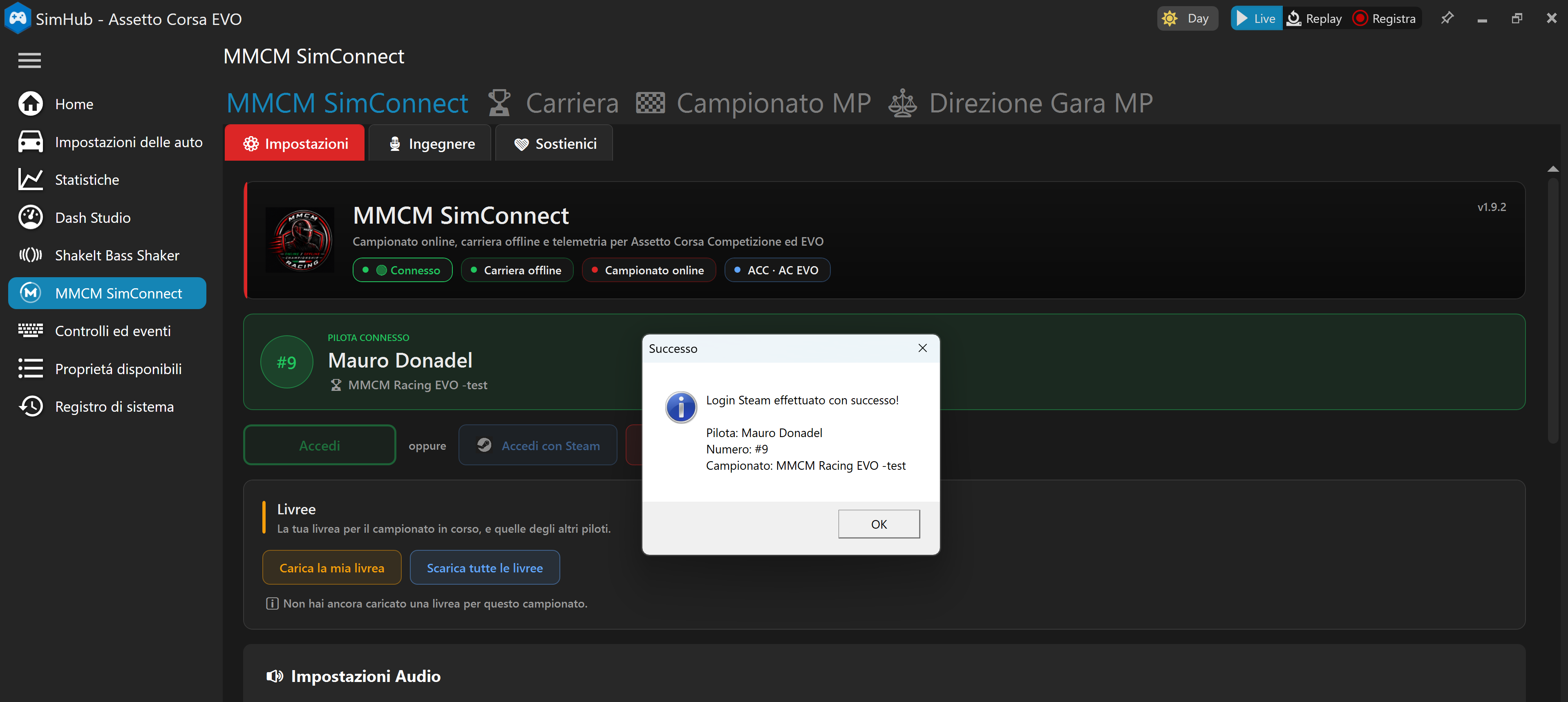
Apri SimHub, vai sulla voce MMCM SimConnect nel menu a sinistra. Nella scheda Impostazioni trovi il box di accesso: usa le stesse credenziali del sito MMCM Racing, oppure il pulsante Accedi con Steam — più veloce, un click e basta.
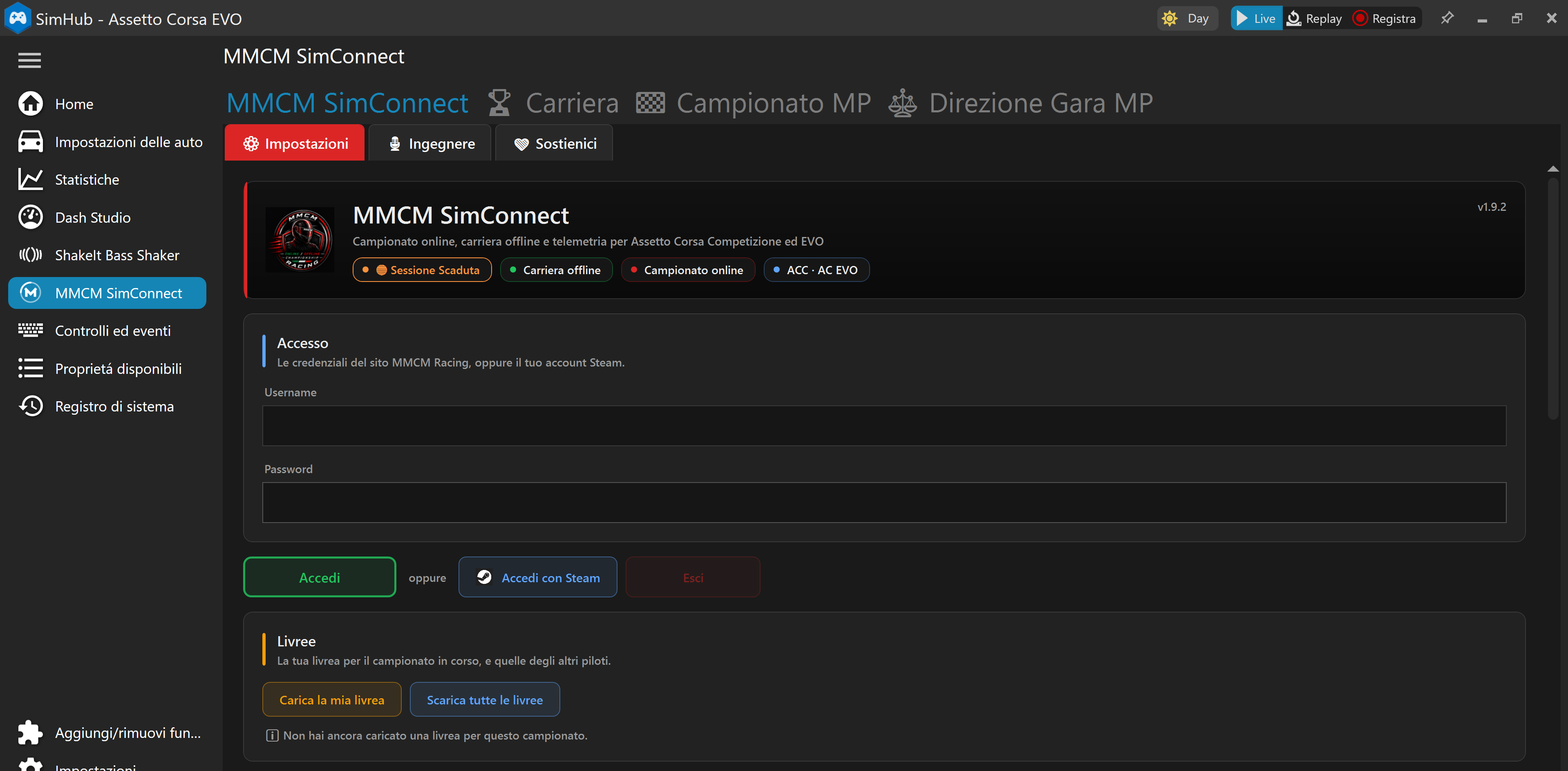
I tuoi dati (e la lingua del plugin)
Subito dopo il primo accesso compila "I tuoi dati": è il pulsante accanto ad Accedi, nella stessa scheda Impostazioni. Steam ci dice chi sei come account, non come pilota — nome, cognome, email, numero preferito ed eventuale team servono per i risultati, per le comunicazioni della Direzione Gara e per il sito. Si compila una volta sola.
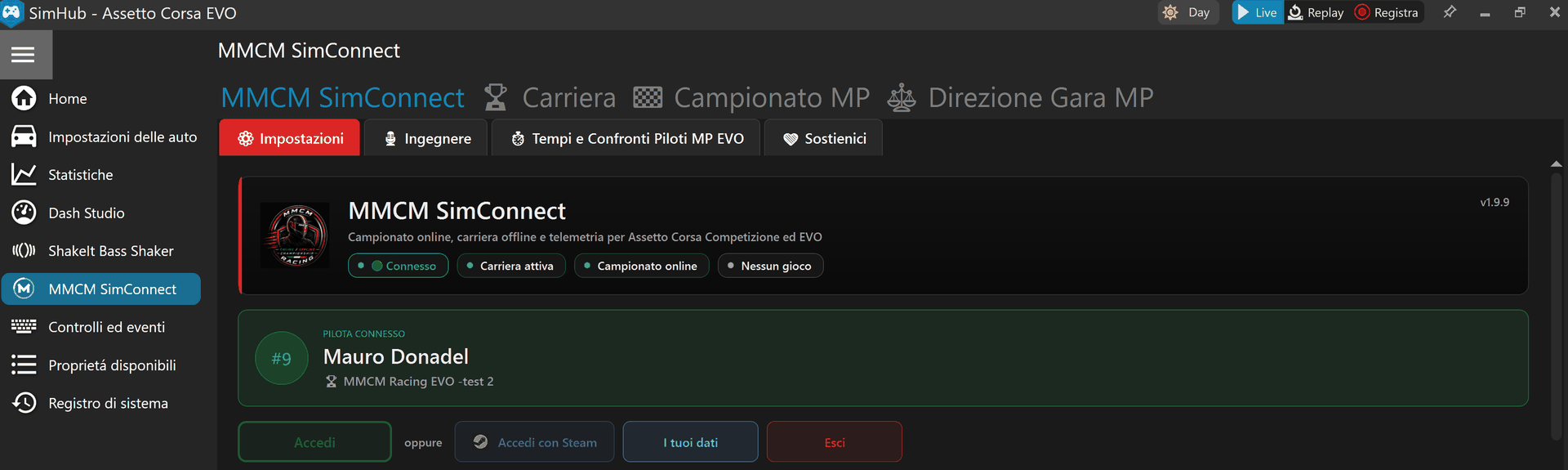
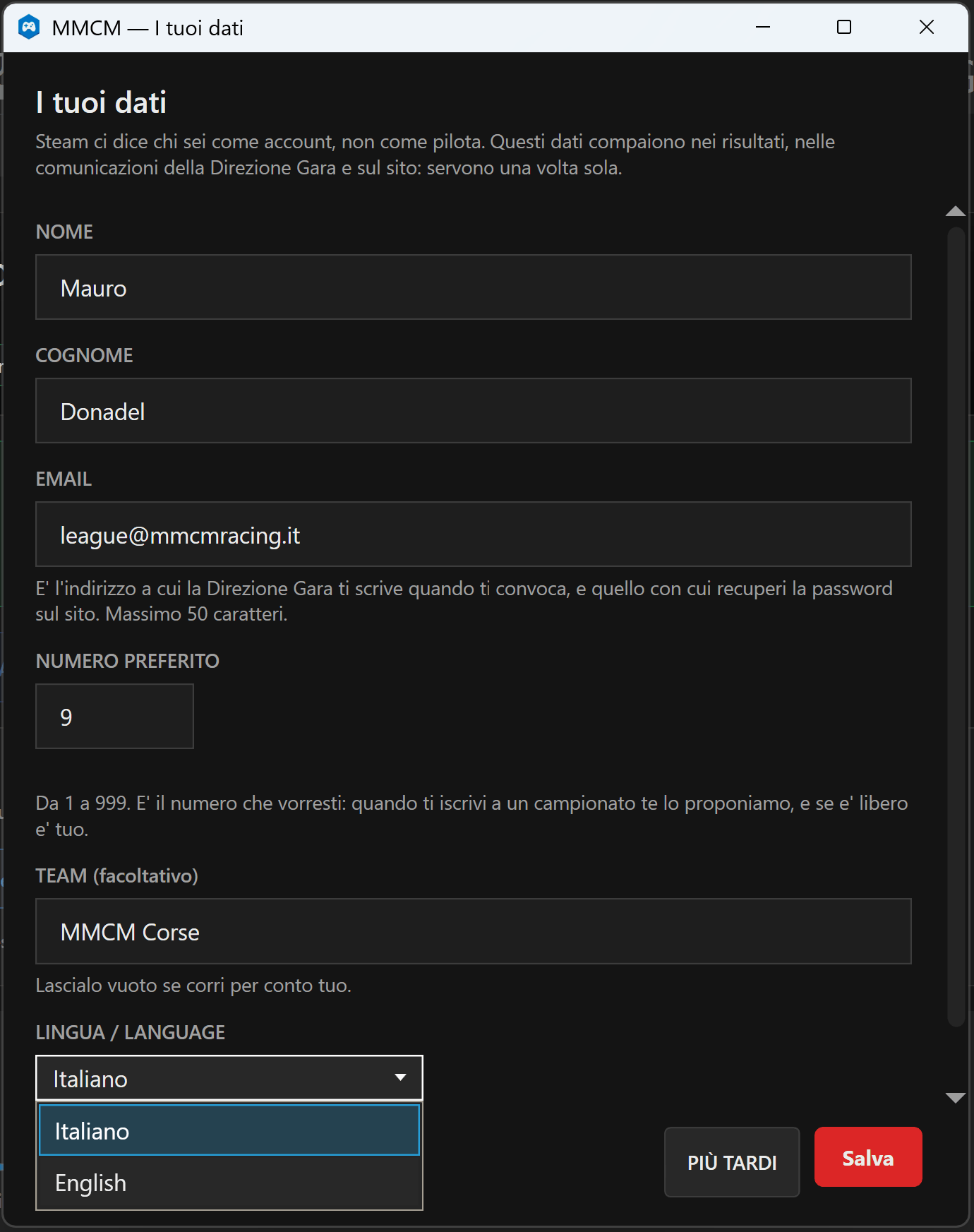
In fondo alla stessa finestra c'è LINGUA / LANGUAGE: da qui scegli se usare il plugin in italiano o in inglese. Salva e l'interfaccia cambia, overlay compreso.
Attivare la Carriera offline
Prima di tutto: la schermata principale della carriera non compare finché questo passaggio non è fatto. È il primo interruttore da accendere.
Vai su MMCM SimConnect → Carriera. La prima casella, "Abilita modalità Carriera MMCM", è quella che accende tutto: senza, nessun dato viene inviato ai server e le tue gare offline restano gare qualunque, senza budget né progressione.
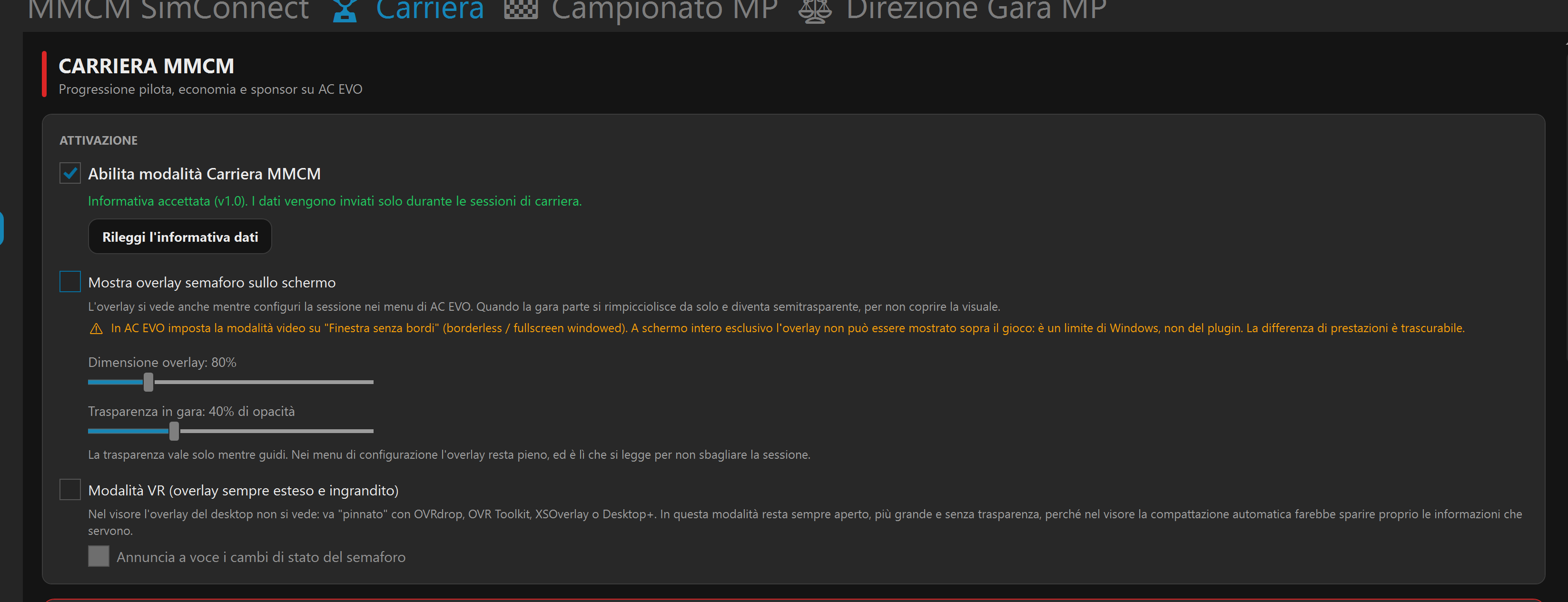
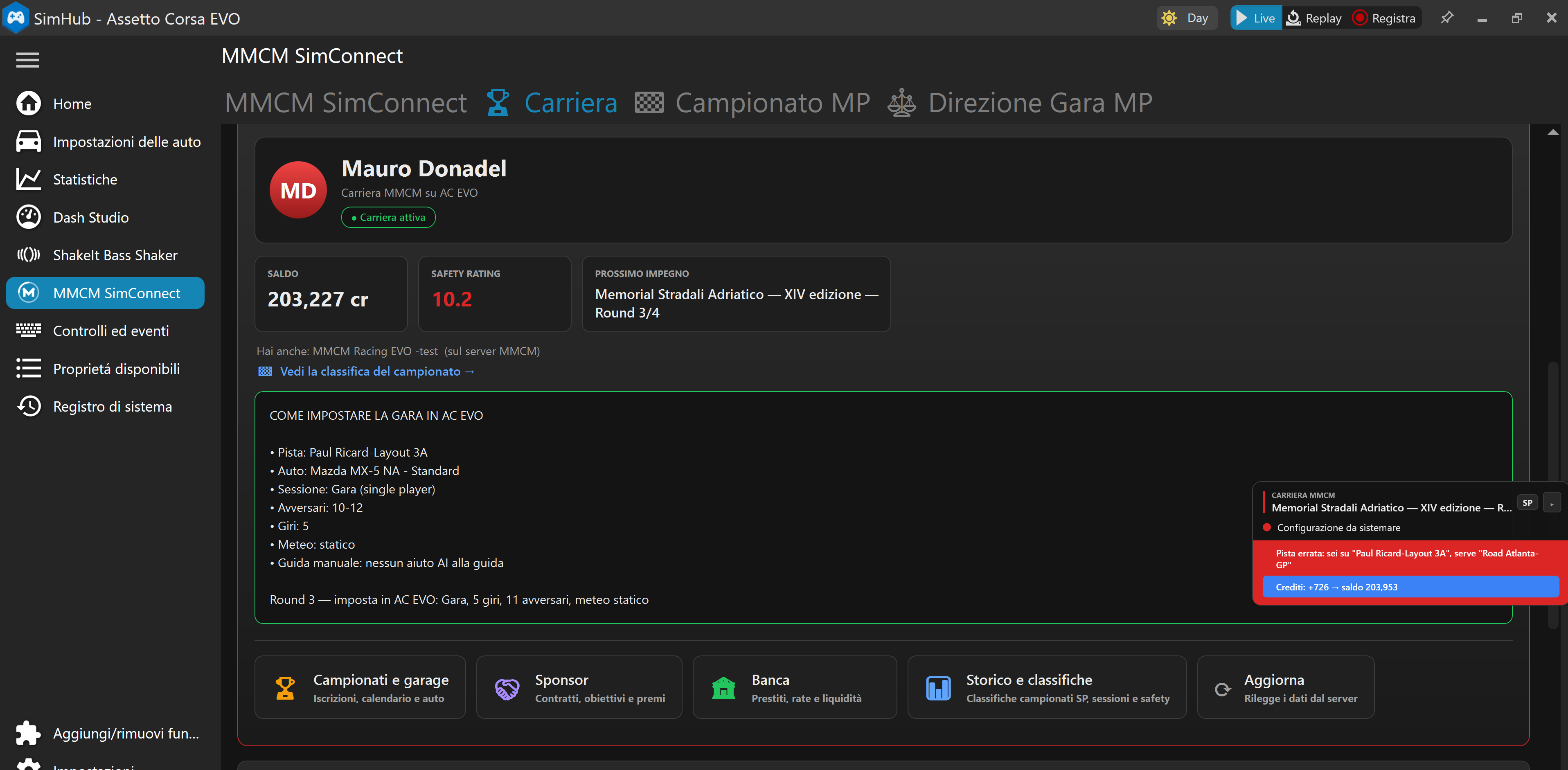
Subito sotto trovi anche l'overlay semaforo: un riquadro che compare sullo schermo mentre configuri la sessione in AC EVO, e ti dice se pista, auto e impostazioni sono quelle giuste. Consigliato tenerlo acceso, soprattutto all'inizio.
La tua schermata principale
Con la carriera attiva, la scheda Carriera diventa la tua base: saldo, safety rating e il prossimo impegno, sempre in cima.
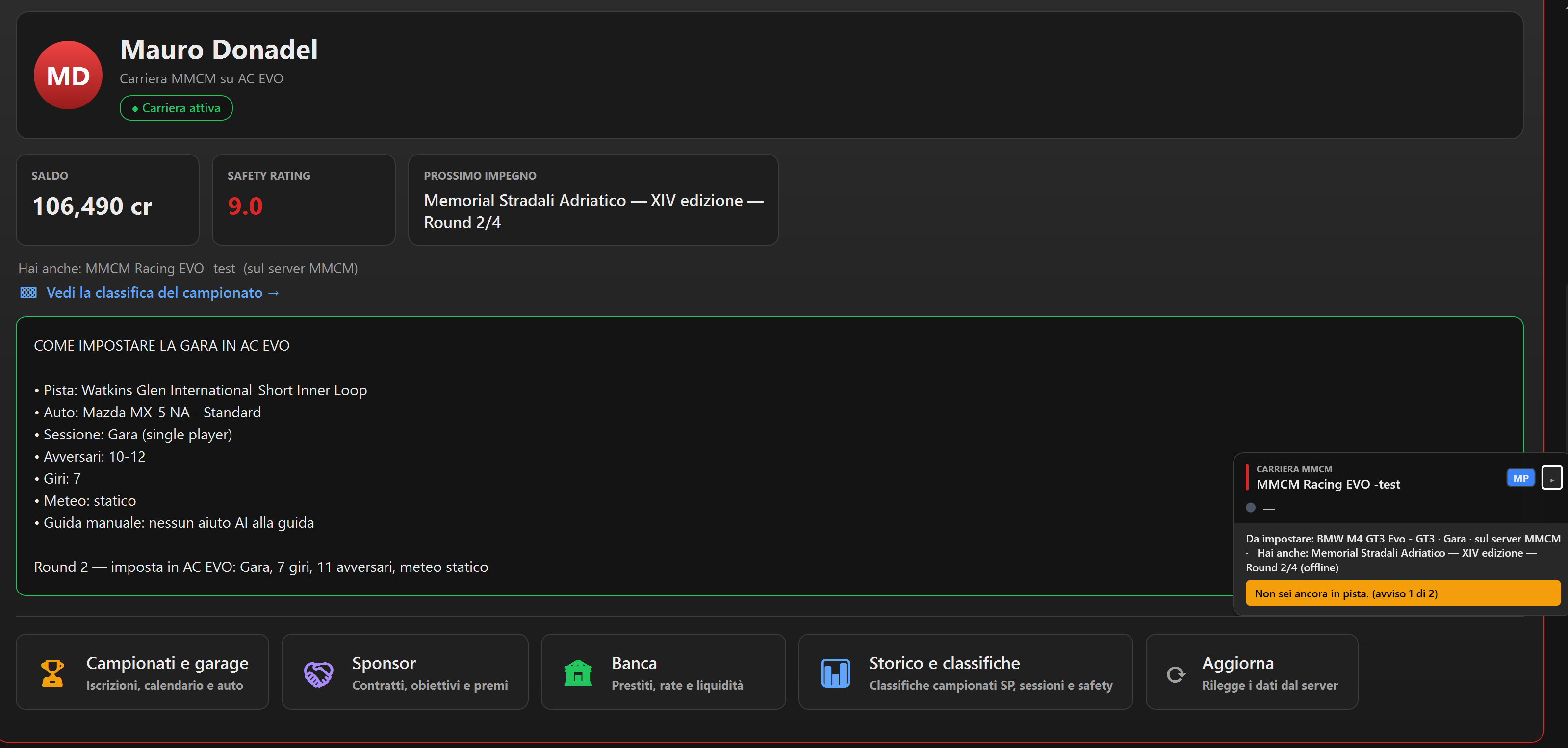
Da qui in un click raggiungi tutto il resto:
- Campionati e garage — dove ti iscrivi e tieni in ordine le tue auto
- Sponsor — i contratti che ti fanno guadagnare oltre ai premi gara
- Banca — se ti serve un prestito per comprare un'auto migliore
- Storico e classifiche — tutte le tue gare passate, una per una
Il riquadro verde "Come impostare la gara in AC EVO" è il tuo foglietto istruzioni: pista, auto, numero di giri, tutto quello che devi impostare nel gioco per quella gara. Copialo com'è, non serve indovinare niente.
Scegliere un campionato e curare l'auto
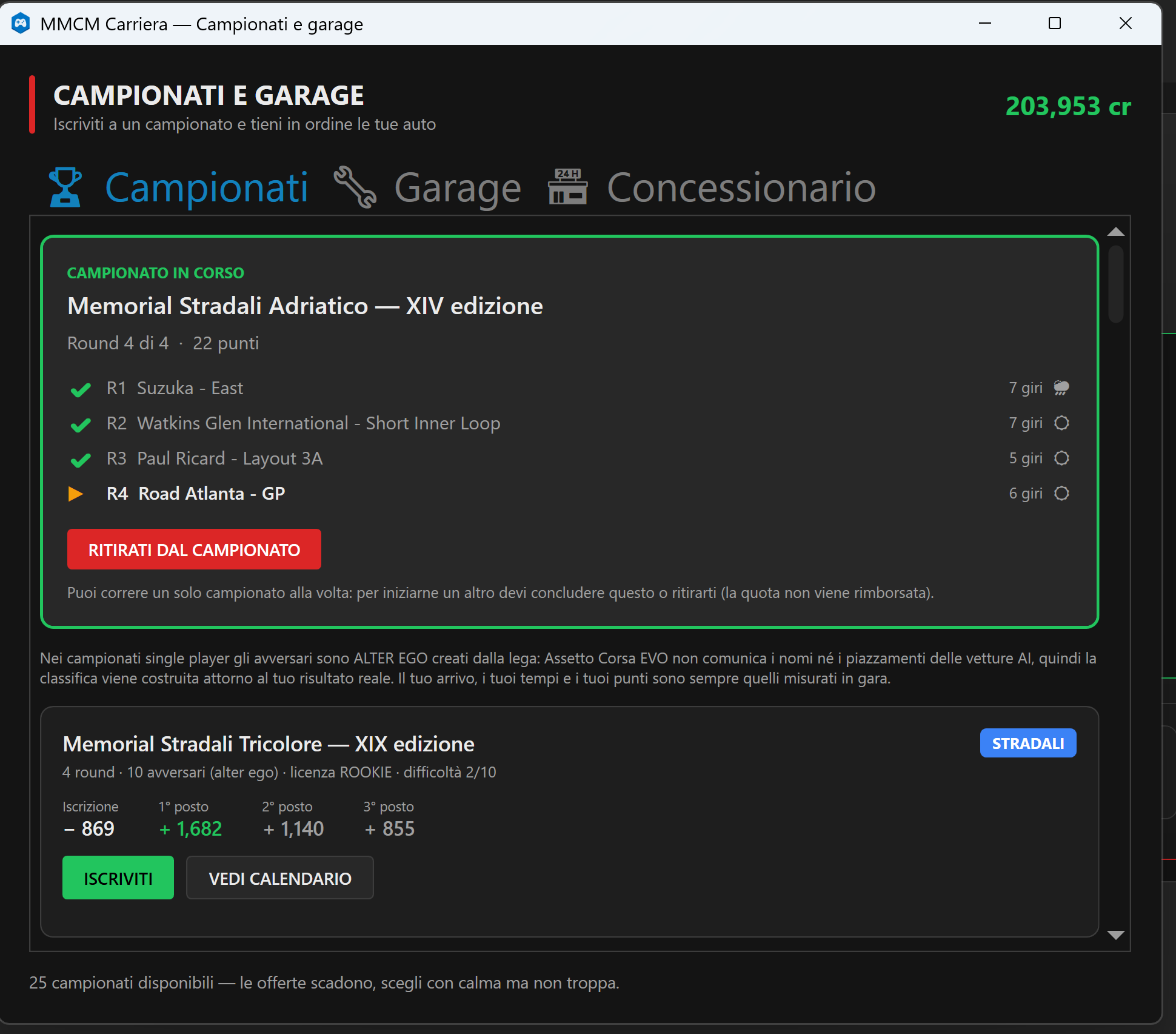
Il pulsante "Campionati e garage" apre una finestra con tre schede: Campionati, Garage e Concessionario. È il centro di comando della tua carriera offline.
Scheda Campionati
Se sei già iscritto a un campionato, lo vedi in cima con i round completati e quello in corso evidenziato. Sotto, trovi gli altri campionati disponibili con quota d'iscrizione e montepremi: scegli quello che vuoi correre e premi ISCRIVITI.
Scheda Garage
Qui vedi lo stato di ogni tua auto: quanto è danneggiata, zona per zona, e cosa costa rimetterla a posto.
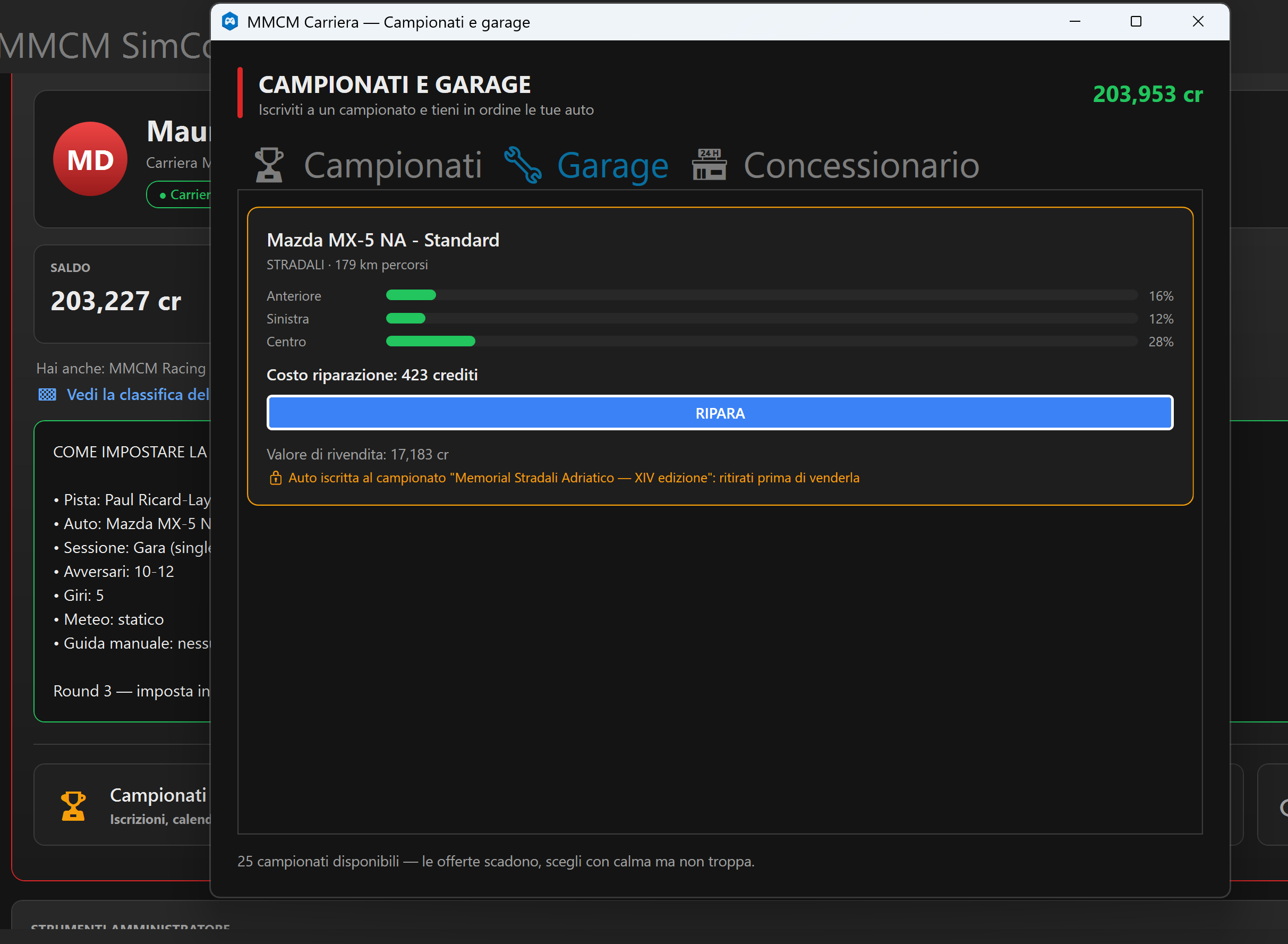
Sopra una certa soglia di danno l'auto non può scendere in pista — te lo dice il plugin stesso al momento di partire, così non lo scopri a metà gara.
L'aiuto mentre configuri la gara
Una volta scelta la gara, torna al gioco: l'overlay ti segue e controlla ogni impostazione — pista, auto, sessione — con un messaggio chiaro se qualcosa non combacia.
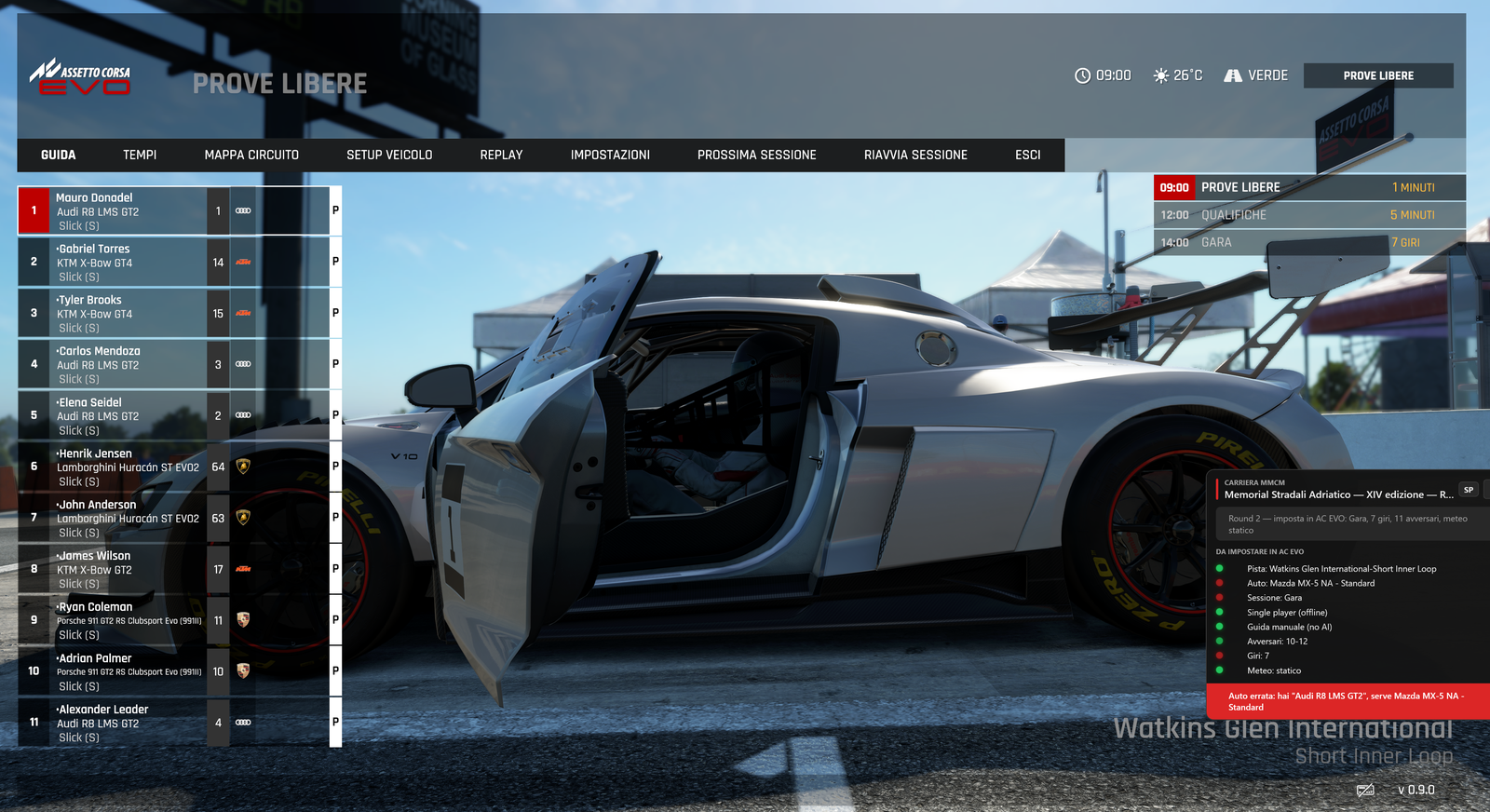
Lo stesso controllo ti segue anche dentro il gioco, mentre sei nei menu di AC EVO: un riquadro con la checklist completa, pallino verde per ogni cosa giusta, rosso per quella da correggere.
Avviare la gara in AC EVO
Questa è la parte che spaventa di più chi inizia, ma in realtà è la più semplice: si gioca normalmente, in Giocatore Singolo, come hai sempre fatto. Il plugin non lancia niente e non tocca il gioco: sta a guardare, controlla che la sessione sia quella giusta e registra il risultato. Tu devi solo far combaciare le impostazioni.
Prima di tutto: come deve girare il gioco
Se vuoi vedere l'overlay mentre configuri e mentre corri, AC EVO deve essere in finestra senza bordi (o finestra), non a schermo intero esclusivo: Windows non disegna nulla sopra un fullscreen esclusivo, quindi l'overlay resterebbe invisibile. Lo imposti nelle impostazioni video di AC EVO, una volta sola.
- La dimensione e la posizione dell'overlay si regolano a piacere dalle impostazioni del plugin: mettilo dove non ti dà fastidio, grande quanto ti serve
- Se in pista lo trovi ingombrante, c'è la modalità compatta: resta il minimo indispensabile
- Se preferisci correre a schermo intero esclusivo puoi farlo lo stesso — semplicemente rinunci all'overlay, ma la gara viene registrata comunque
Da dove si parte
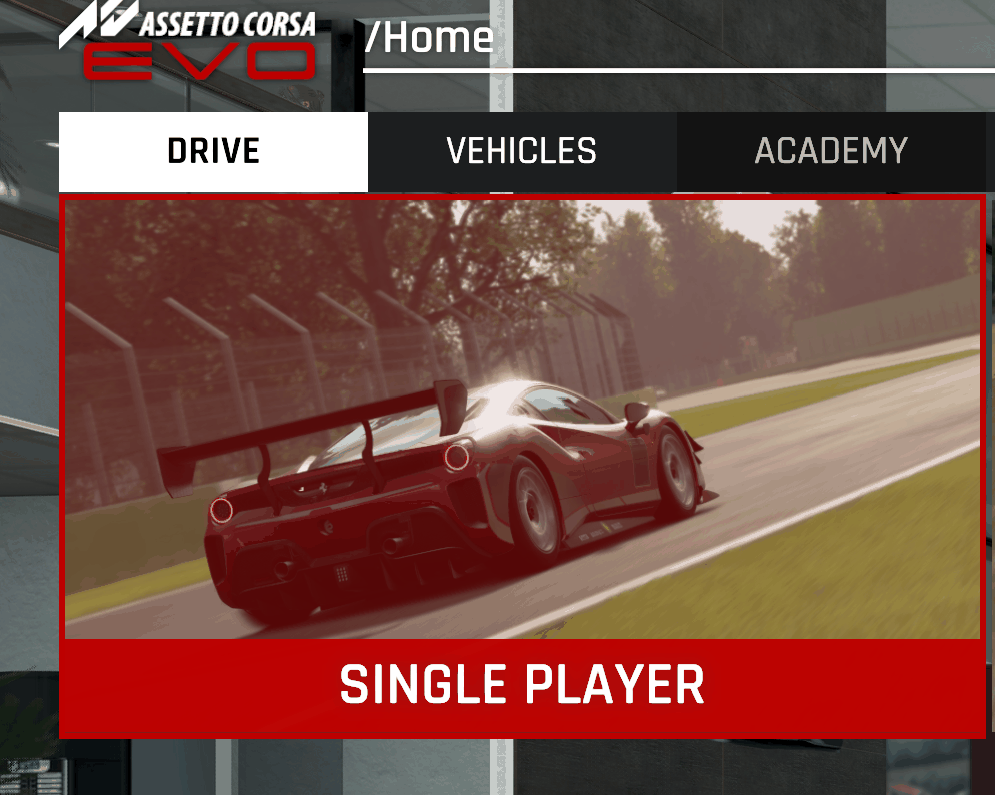
Dalla home di AC EVO: DRIVE → SINGLE PLAYER. Da lì scegli la modalità.
Vanno bene entrambe. Quello che conta non è la modalità, ma che i parametri della sessione siano quelli chiesti dal round: pista, auto, tipo di sessione Gara, numero di giri, numero di avversari e meteo.
Impostare la gara
Non devi indovinare niente: il riquadro verde "Come impostare la gara in AC EVO" nella scheda Carriera, e l'overlay stesso, ti elencano la configurazione richiesta riga per riga. Ricopiala nella schermata di impostazione del gioco.
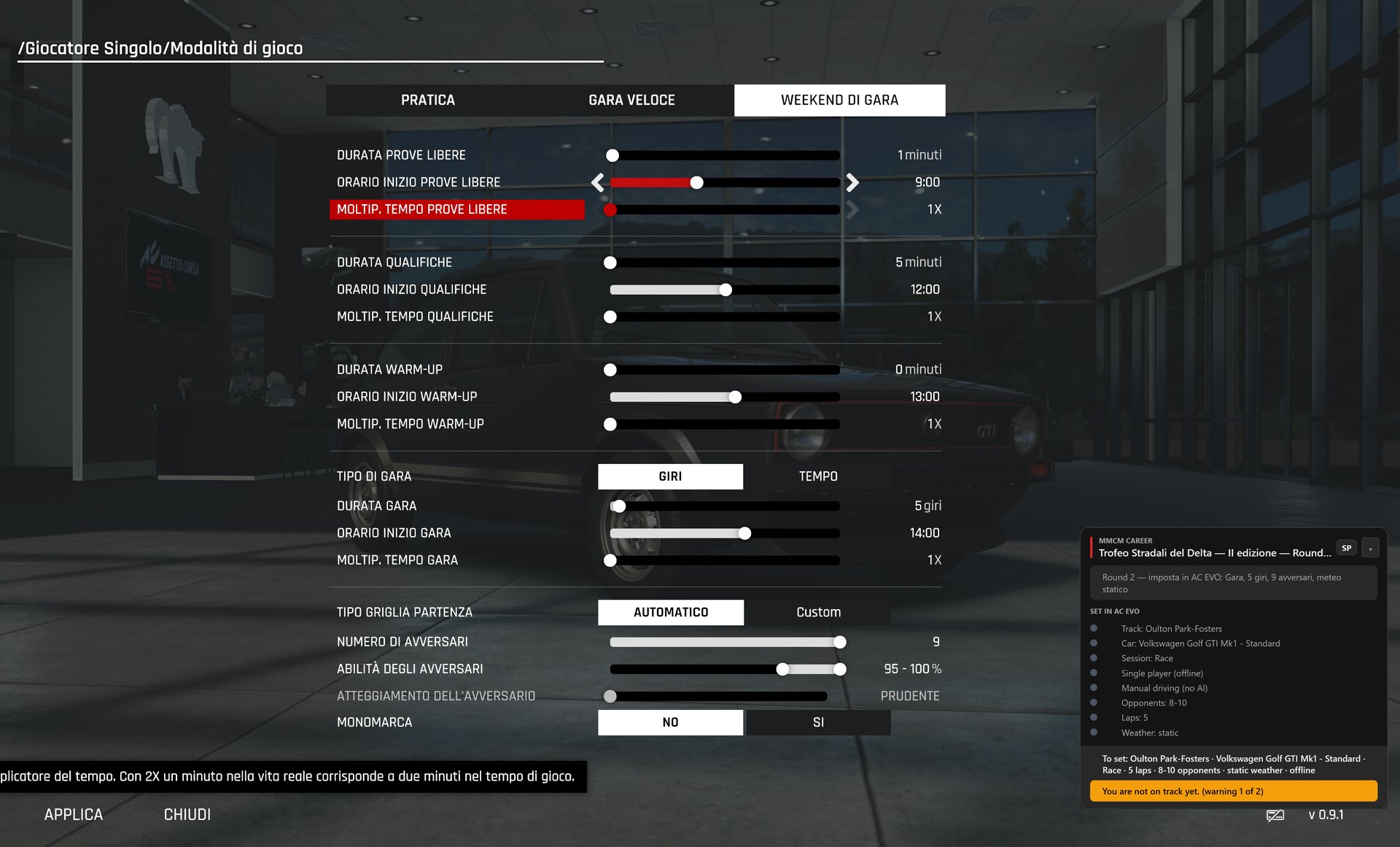
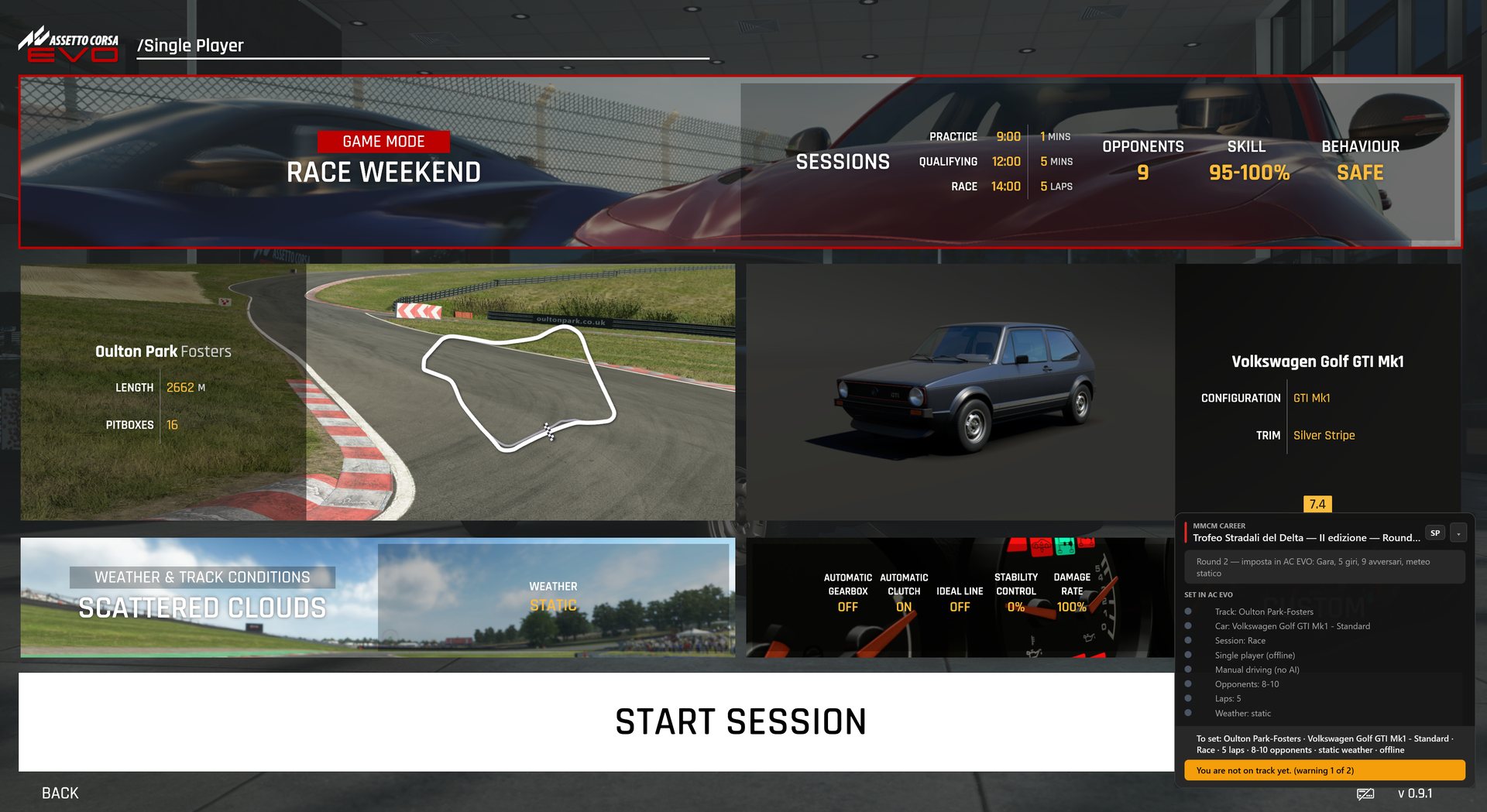
Nella schermata di riepilogo, prima di partire, hai il colpo d'occhio finale: se l'overlay è tutto verde sei a posto, premi START SESSION.
Il messaggio rosso "sei in Prove libere": è normale
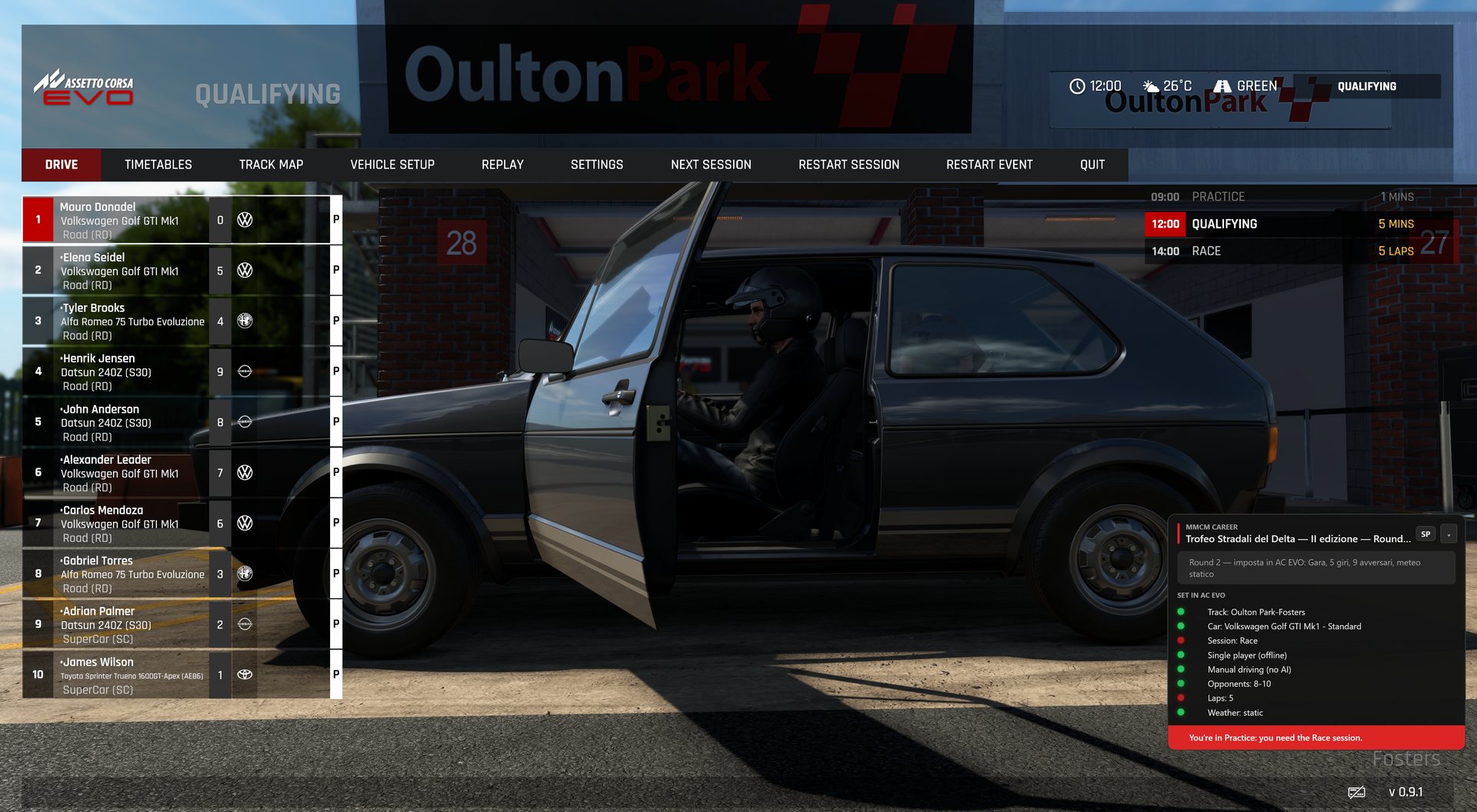
Se scegli il weekend di gara, il gioco ti porta prima in prove libere e poi in qualifica. Finché non sei nella sessione di Gara, l'overlay te lo segnala in rosso — non è un errore da correggere e non devi fare niente: è solo il plugin che ti dice "quella che conta non è ancora iniziata".
Quando parte la gara
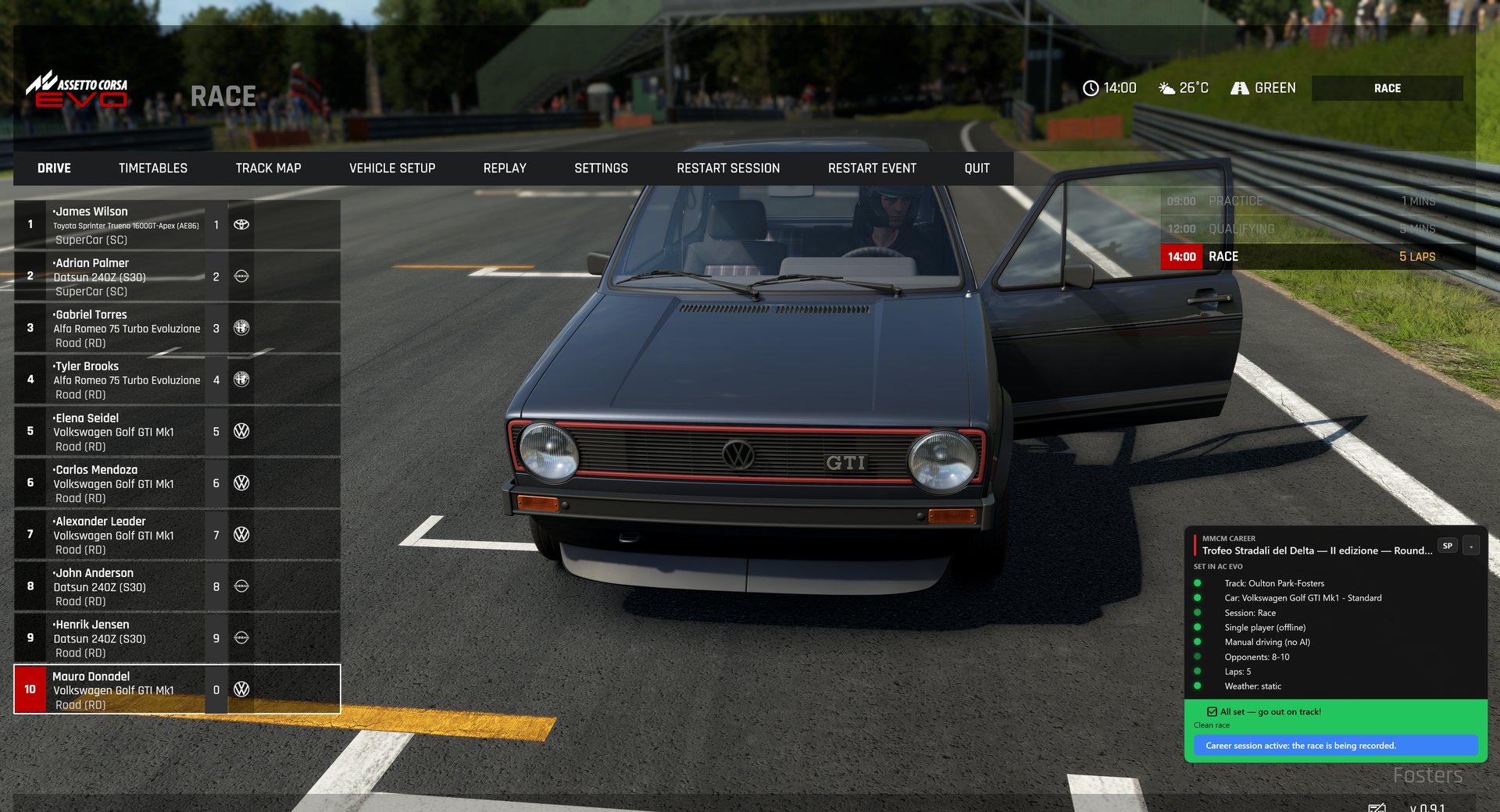
Appena sei nella sessione di gara e tutto combacia, l'overlay passa al verde con "Tutto pronto — vai in pista!" e ti conferma che la sessione di carriera è attiva e la gara viene registrata.
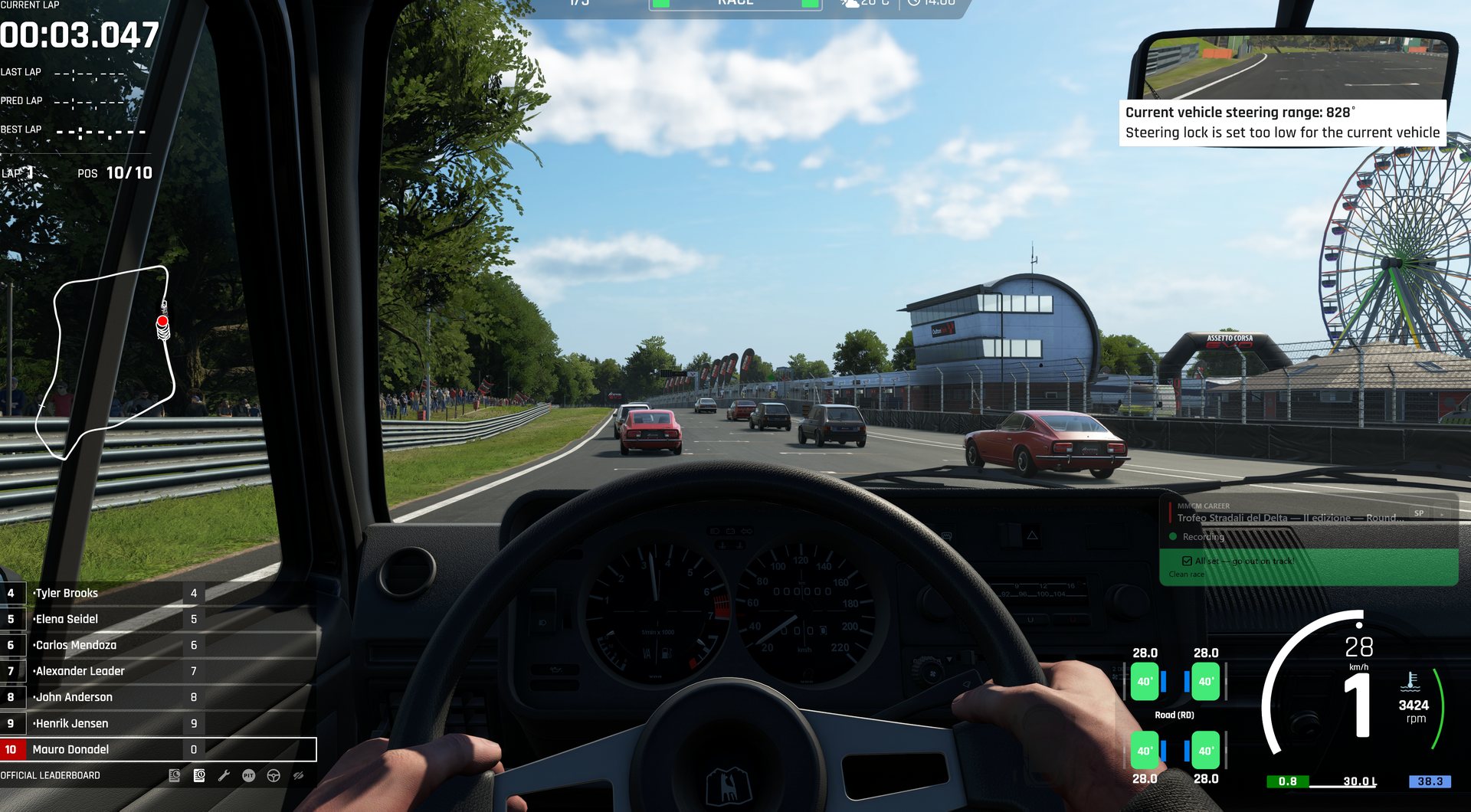
Una volta in pista l'overlay diventa semitrasparente per non coprirti la visuale, e mostra solo lo stato "Registrazione in corso". Se vuoi ancora meno ingombro, mettilo in modalità compatta e dimenticatene: da qui in poi devi solo guidare.
Finita la gara
Taglia il traguardo e aspetta una trentina di secondi: il plugin chiude la sessione, calcola safety rating, crediti e punti, e invia il risultato ai server. Da quel momento lo trovi in "Storico e classifiche".
- Gioco in finestra senza bordi, overlay dove e come ti piace
- Single Player, gara veloce o weekend di gara: scegli tu
- Configurazione copiata dall'overlay, tutti i pallini verdi
- Rosso "sessione" durante prove e qualifica: normale, si sistema da solo
- Trenta secondi di pazienza dopo il traguardo, poi guardi lo storico
Il tuo storico in carriera offline
Dalla home, "Storico e classifiche" apre "Il mio storico": qui sopra hai sempre il tuo riepilogo — safety rating, sessioni corse, km percorsi, contatti — con le schede Sessioni, Campionati e Record per guardarlo da angolazioni diverse.
Scheda Sessioni: il dettaglio di ogni gara
Ogni sessione può essere aperta per vedere esattamente cosa è successo: i crediti guadagnati e, soprattutto, come è cambiato il tuo safety rating — voce per voce.
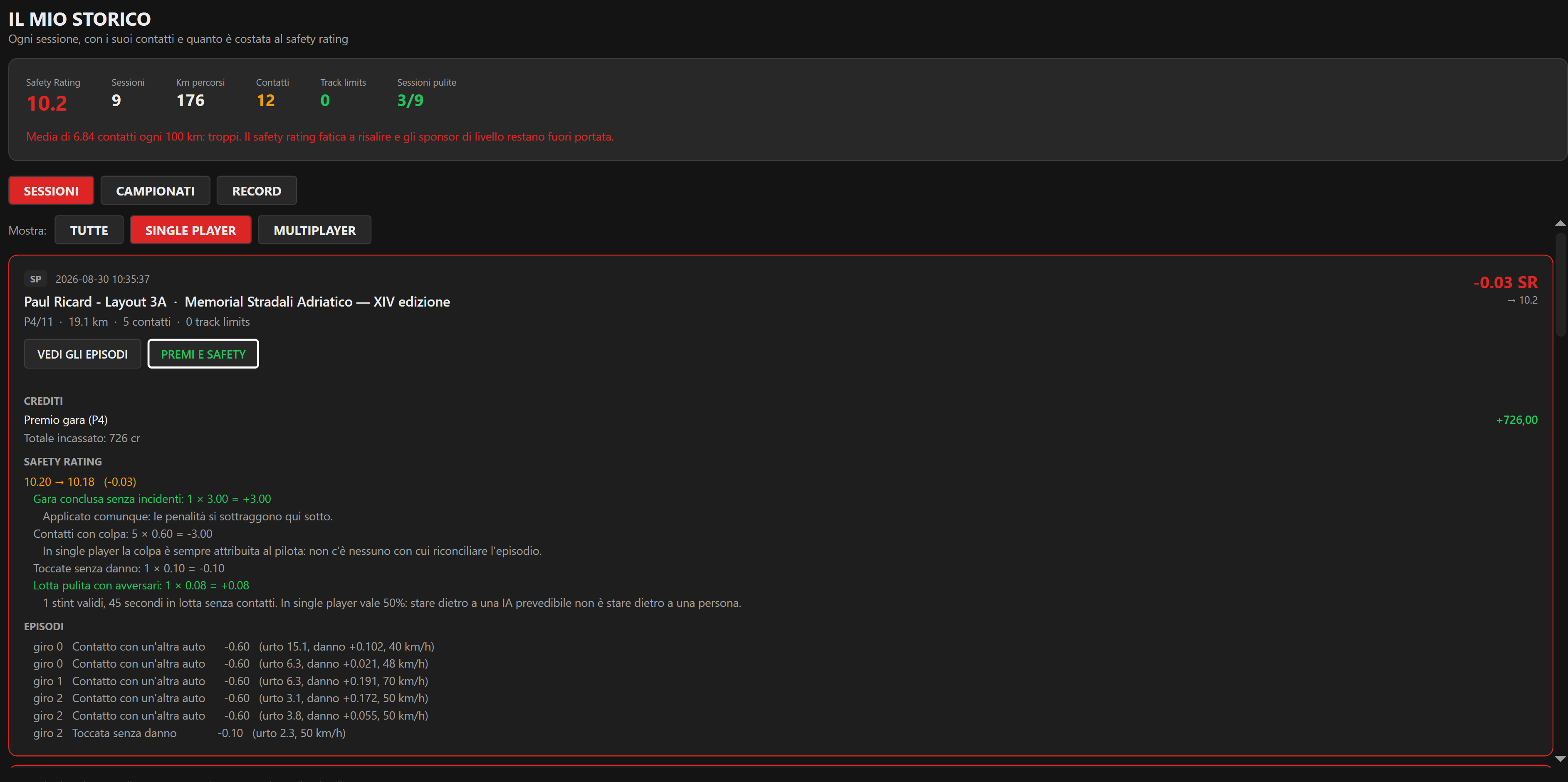
In fondo trovi anche l'elenco degli episodi: ogni contatto, con il giro in cui è avvenuto e quanto safety rating è costato.
Scheda Campionati: la classifica del campionato offline
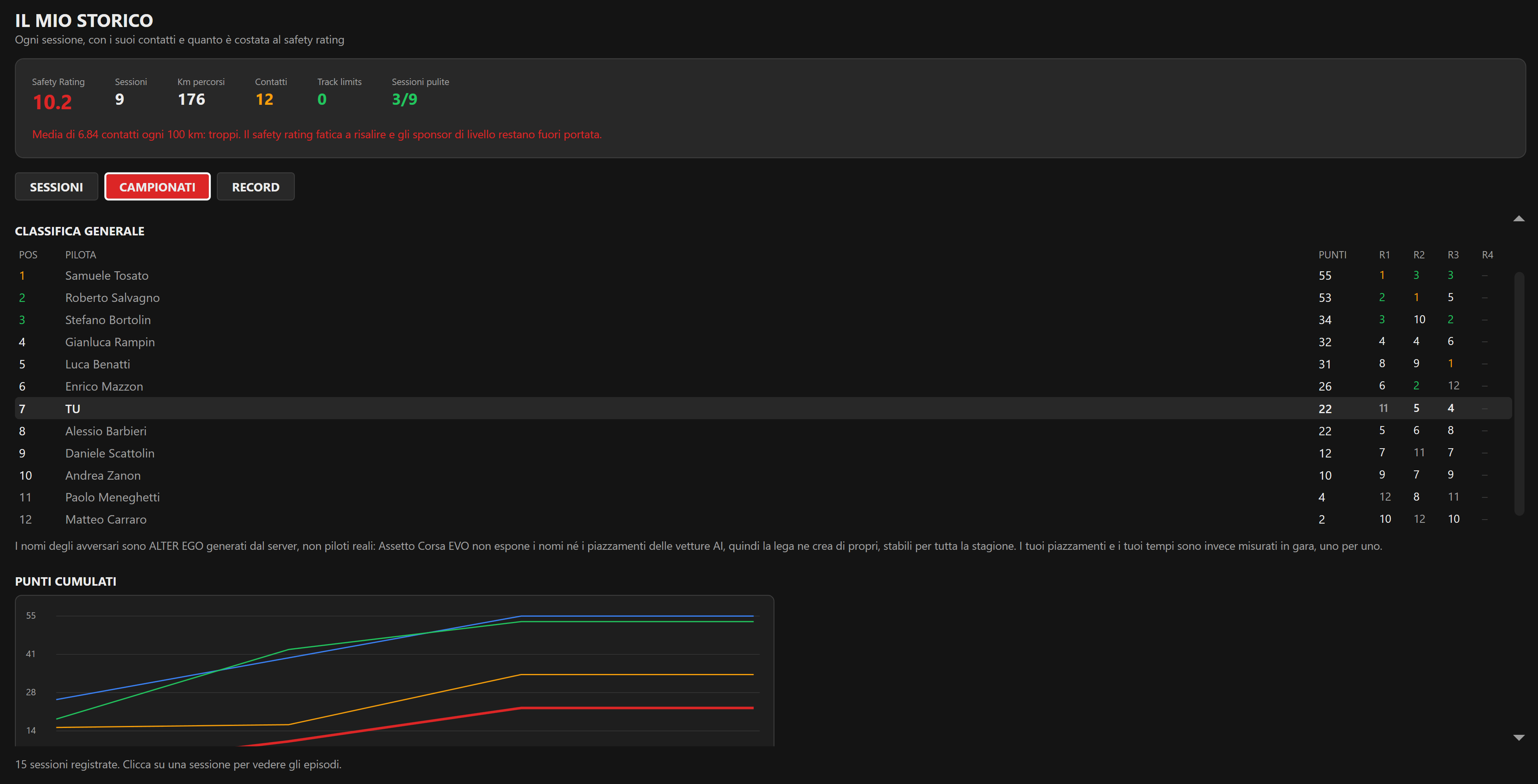
Qui vedi la classifica generale del campionato che stai correndo, con i punti round per round e un grafico che mostra il tuo andamento rispetto agli avversari.
Iscriversi a un Campionato online
Per correre online servono due iscrizioni separate, in quest'ordine. Il plugin te lo ricorda ogni volta che apri la scheda Campionato MP di un campionato a cui non sei ancora iscritto.
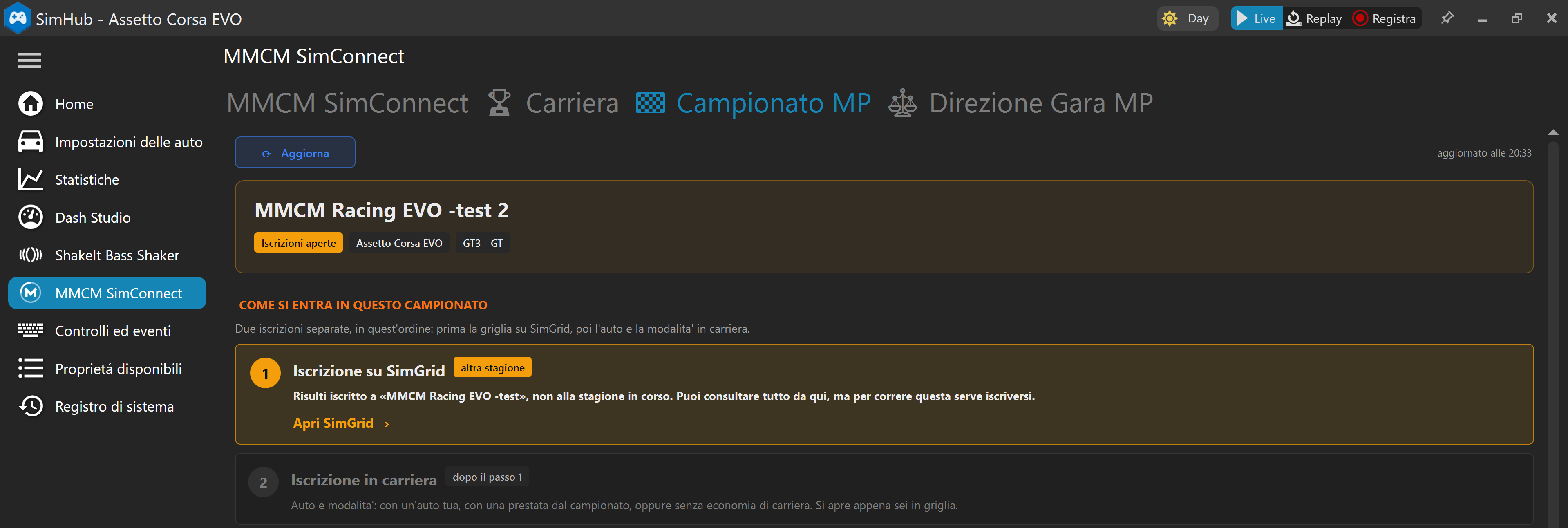
- Prima su SimGrid — è lì che ti metti in griglia per la gara vera e propria. Il pulsante "Apri SimGrid" ti ci porta direttamente
- Poi in carriera — appena sei in griglia, torna qui: si sblocca la scelta dell'auto e della modalità di partecipazione
Con che auto corri online
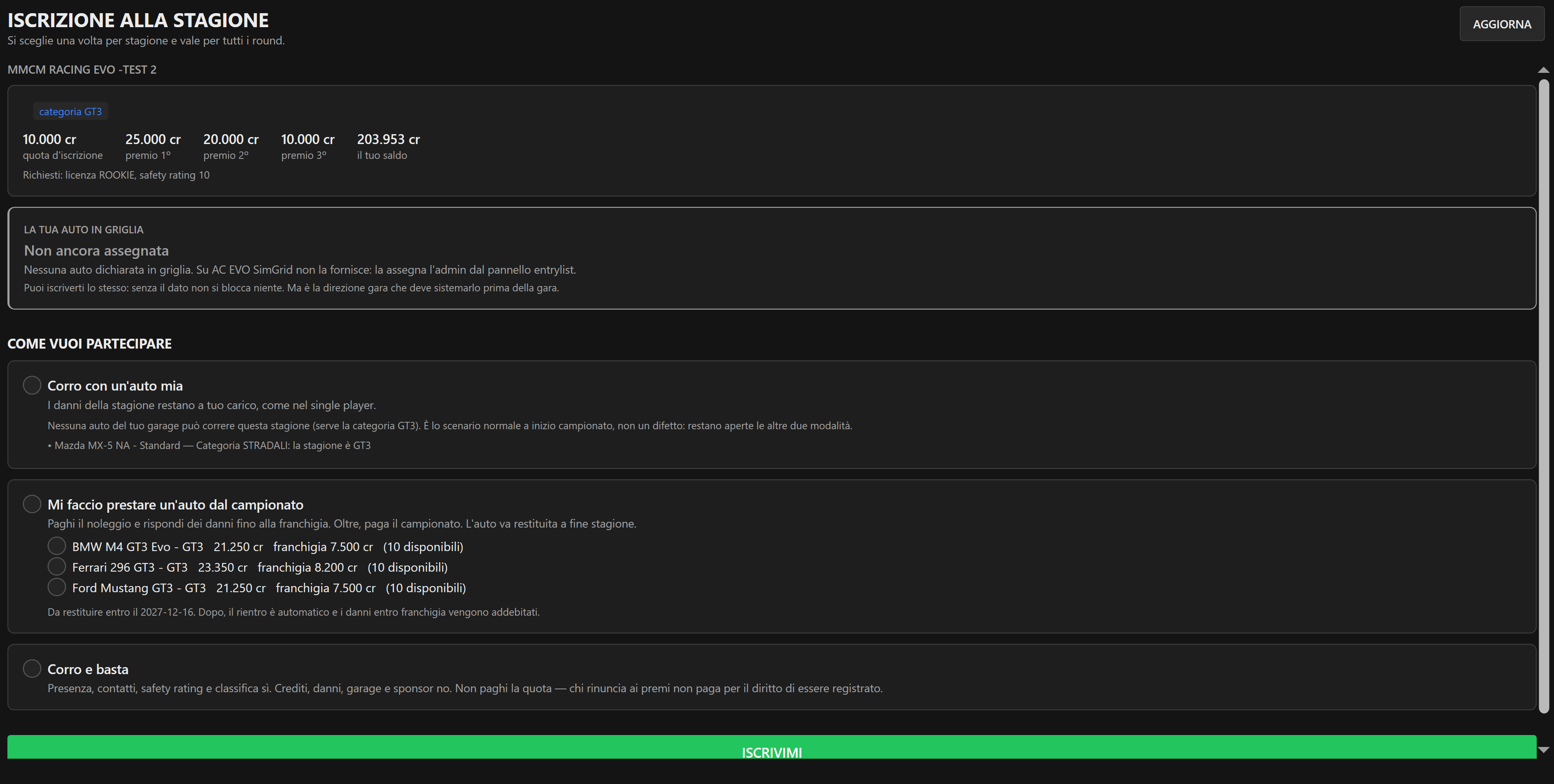
Una volta in griglia, scegli come vuoi correre. La scelta vale per tutta la stagione, non gara per gara.
Le pre-qualifiche online
Prima del weekend di gara vero, molte piste hanno una finestra di pre-qualifica: giri sul server dedicato, con la tua auto iscritta, e il plugin registra da solo il tuo tempo migliore. Vale per decidere la griglia di partenza, non per la classifica del campionato.
Dalla scheda Campionato MP
Nella sotto-scheda dedicata trovi tutte le piste del ciclo, con la data di apertura e due pulsanti: uno per i tuoi tempi personali, uno per il tabellone di tutti i piloti.
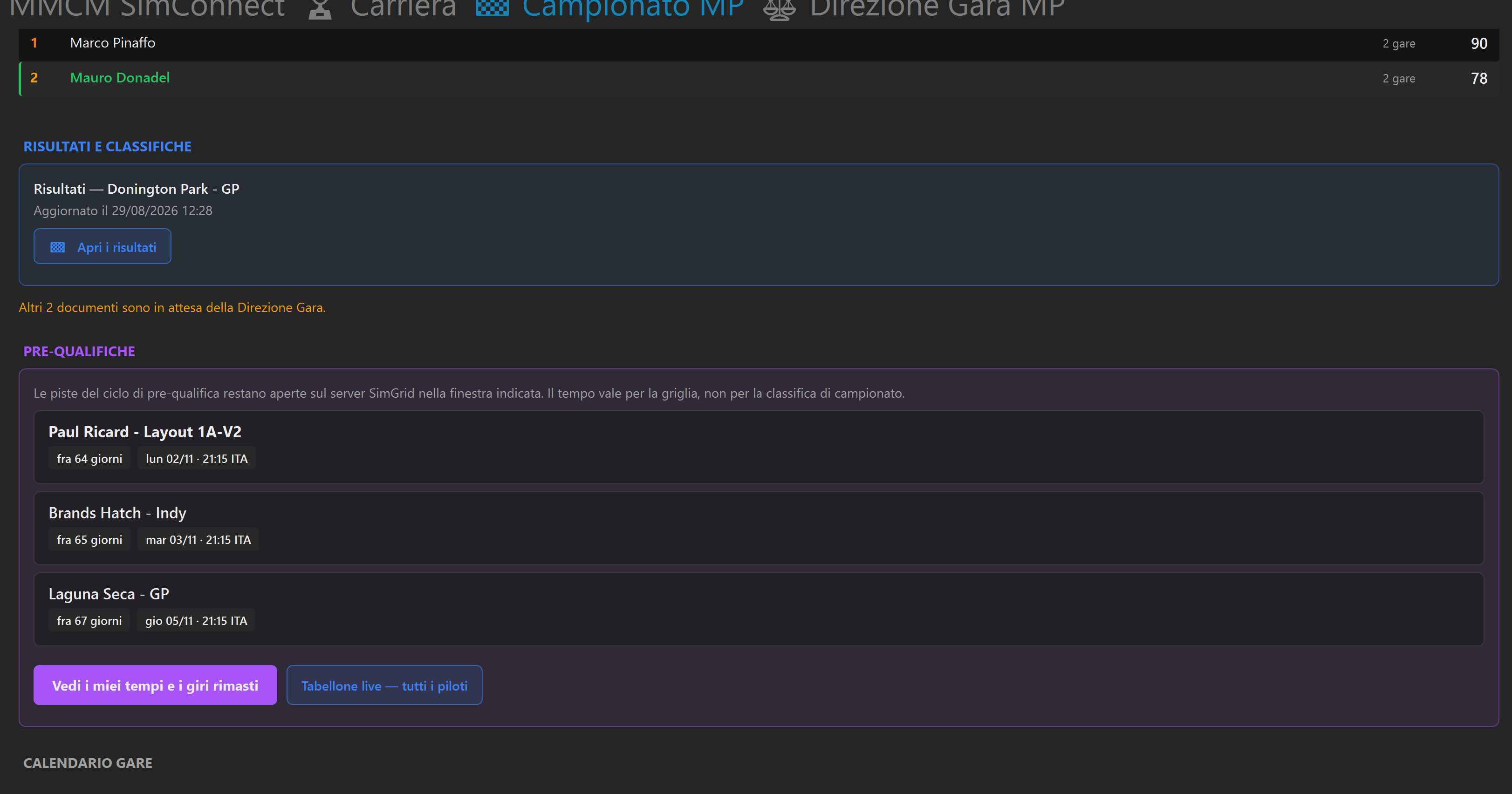
I tuoi tempi, pista per pista
Da "Vedi i miei tempi e i giri rimasti" vedi esattamente a che punto sei: quante piste hai già completato, quali ti mancano, e per ognuna la soglia da battere.
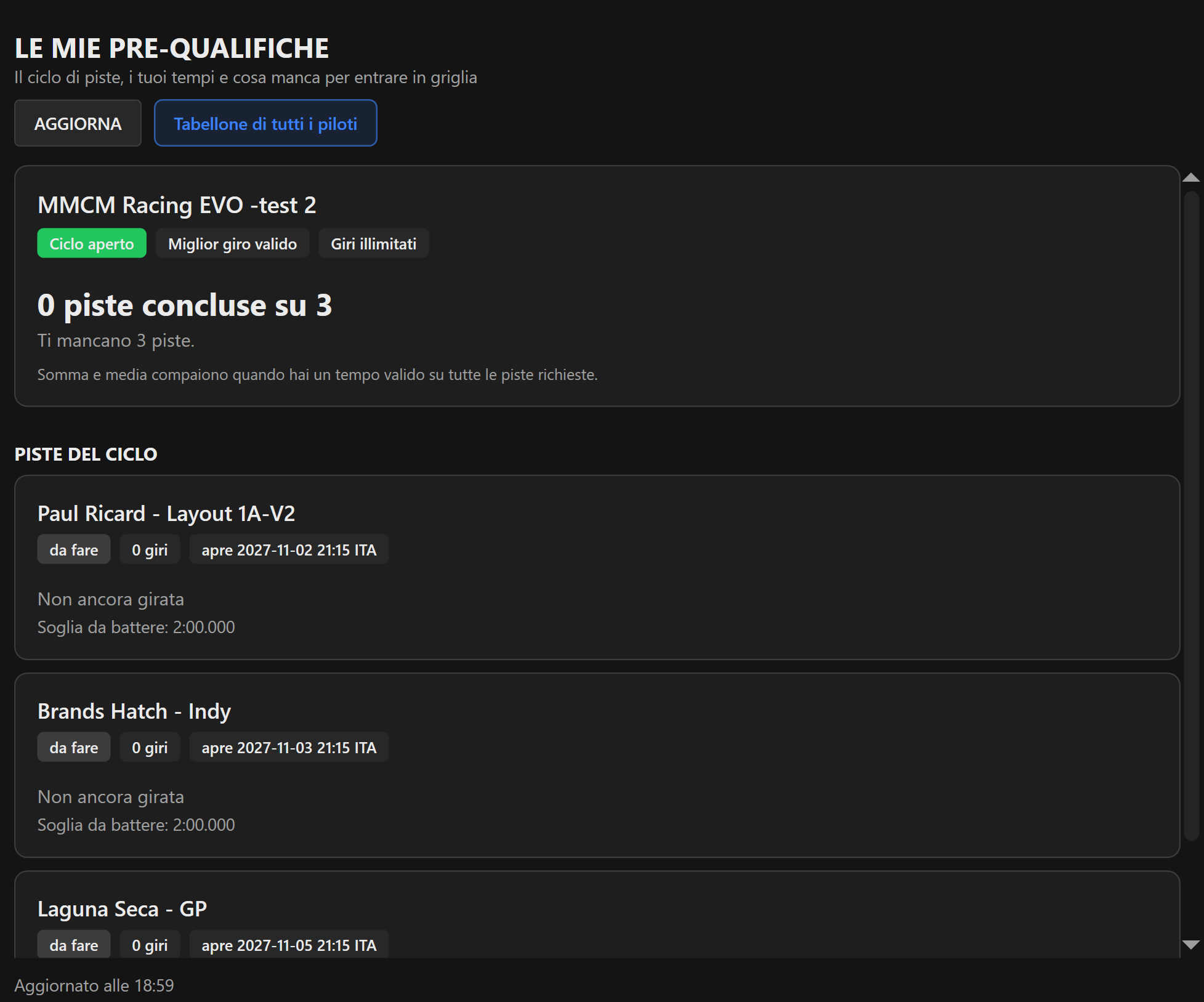
Il tabellone in tempo reale
Mentre sei in pista sul server di pre-qualifica, un overlay ti mostra live il tempo valido, il tuo migliore e quanto manca alla soglia — per ogni pista del ciclo insieme.
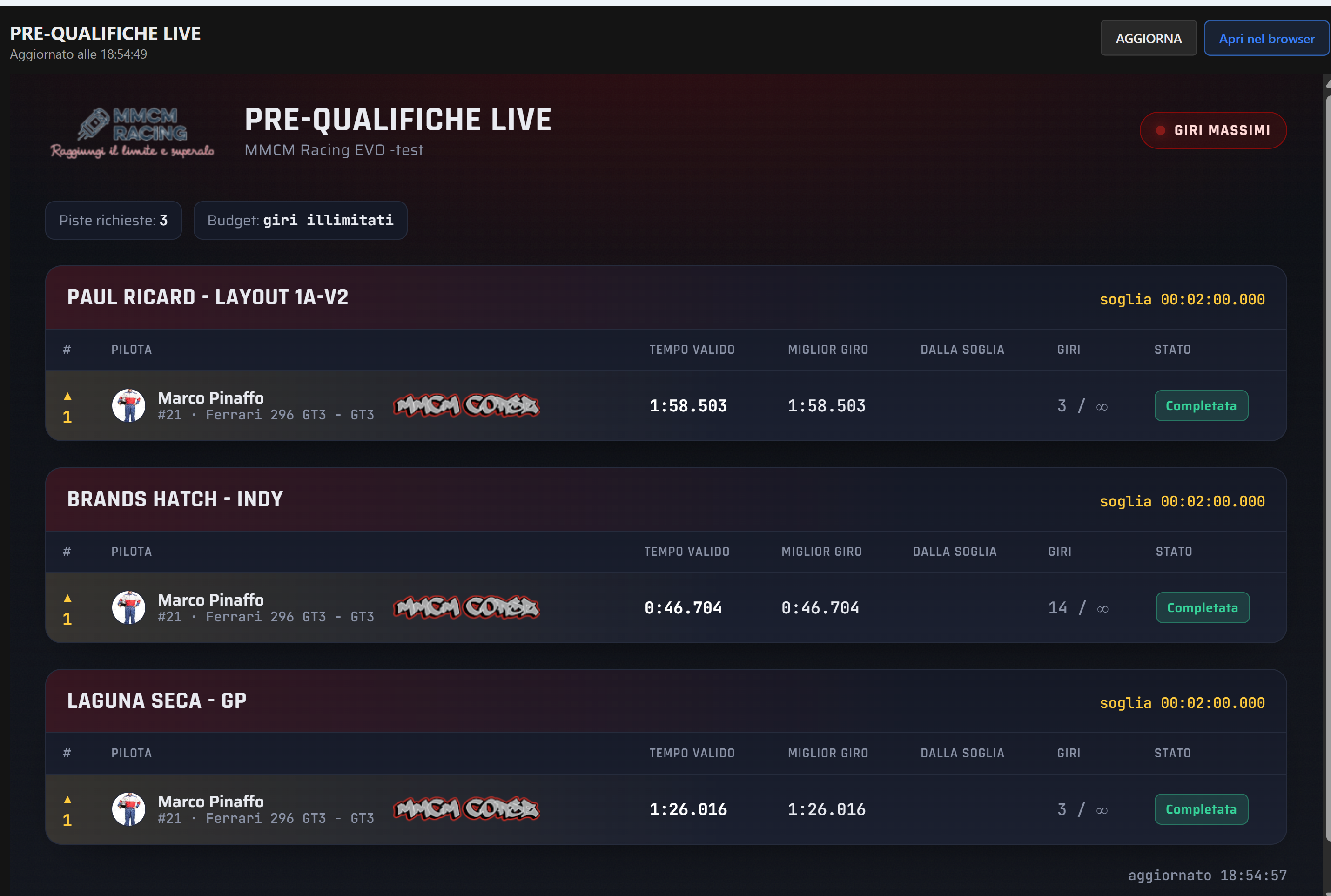
Ogni giro valido viene salvato automaticamente: non serve fare nulla oltre a girare.
Risultati, classifiche e la tua condotta
Nella scheda Campionato MP trovi quattro sotto-schede, sempre nello stesso ordine:
- Adesso — cosa c'è in scadenza: prequalifiche aperte, provvedimenti da leggere, il prossimo round
- Campionato — la classifica generale e i risultati di ogni gara disputata
- MyMMCM — la tua iscrizione, i tuoi numeri personali (contatti, posizioni guadagnate, gare concluse)
- Condotta — ogni episodio che ti riguarda, giudicato o ancora in esame
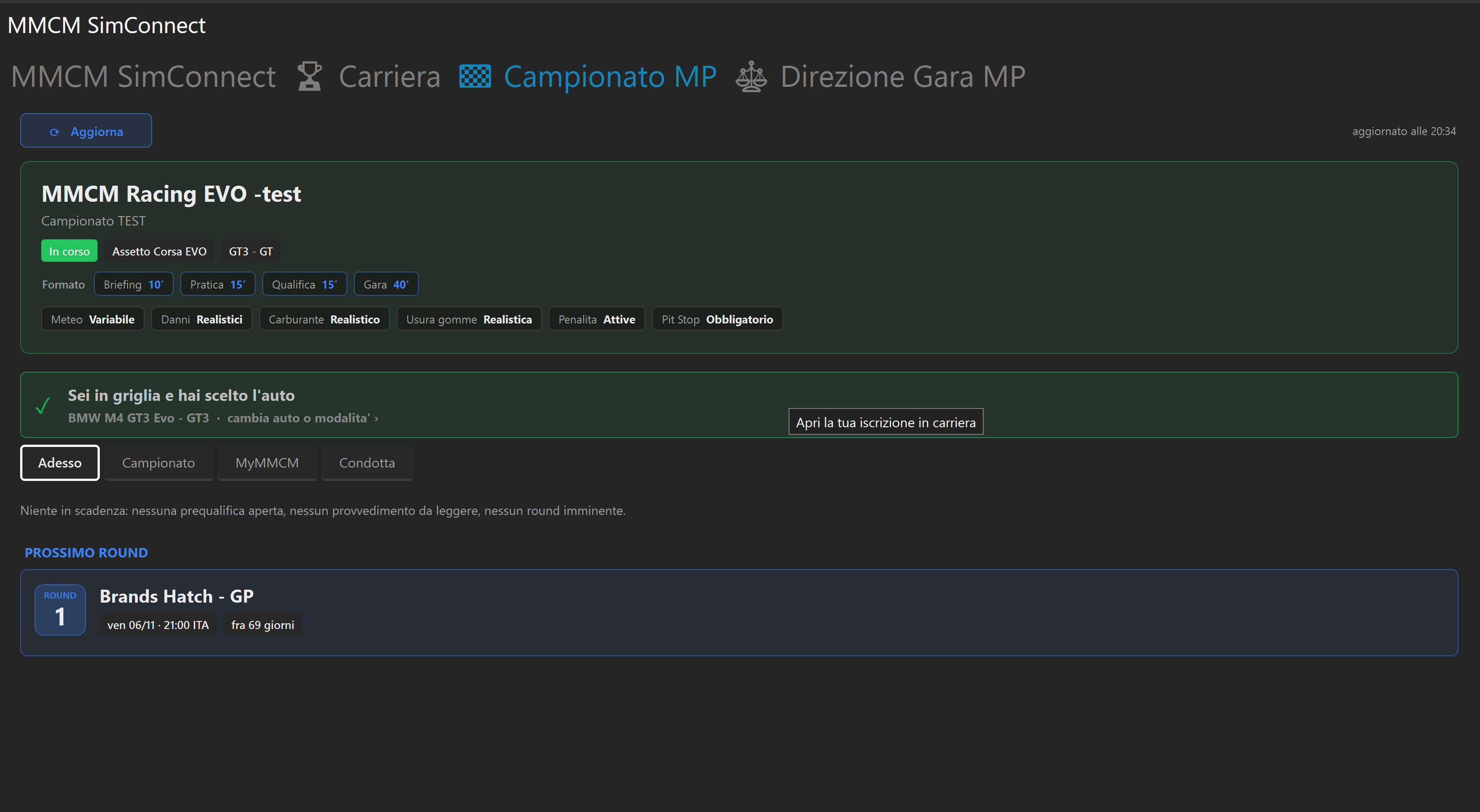
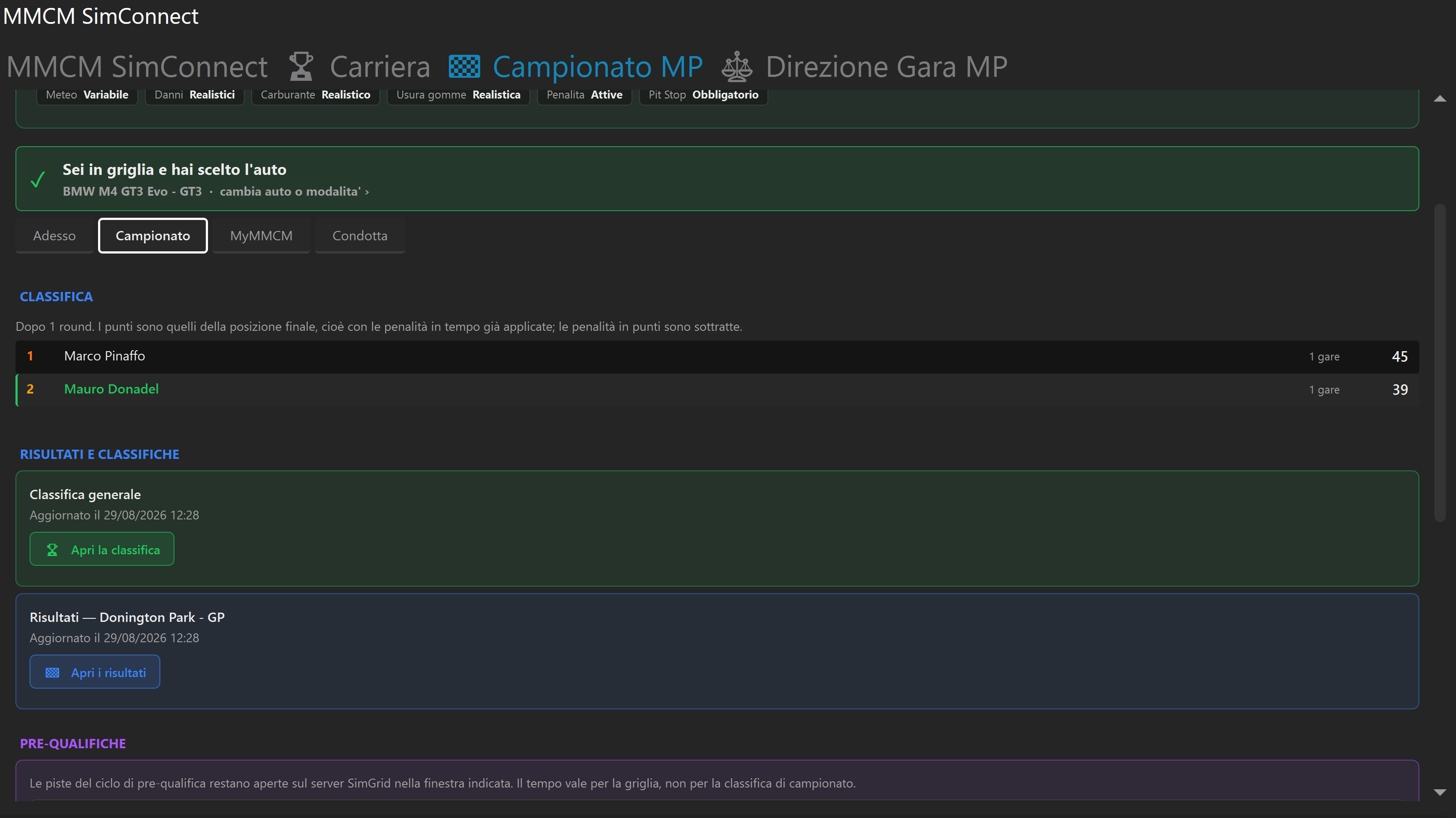
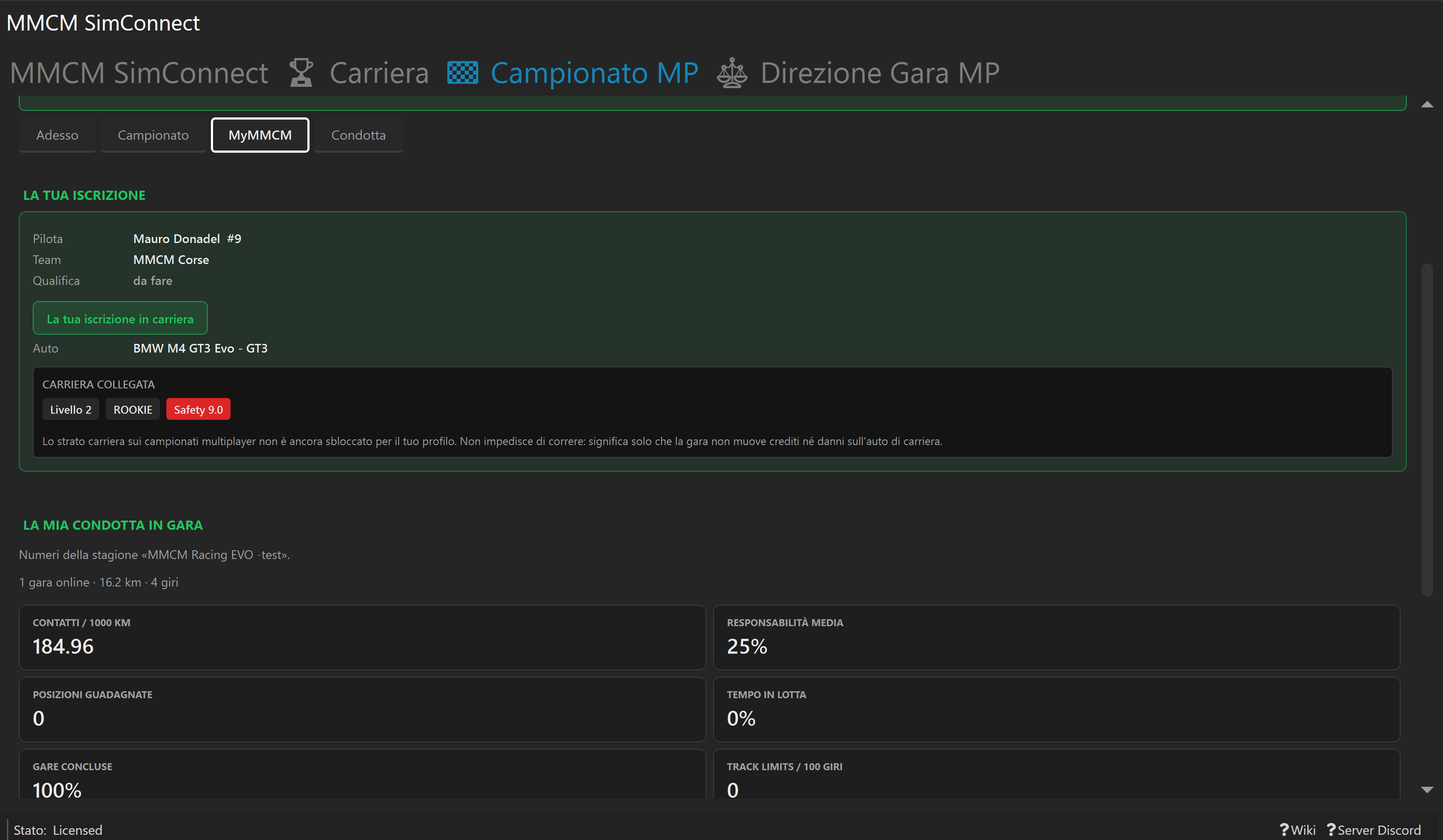
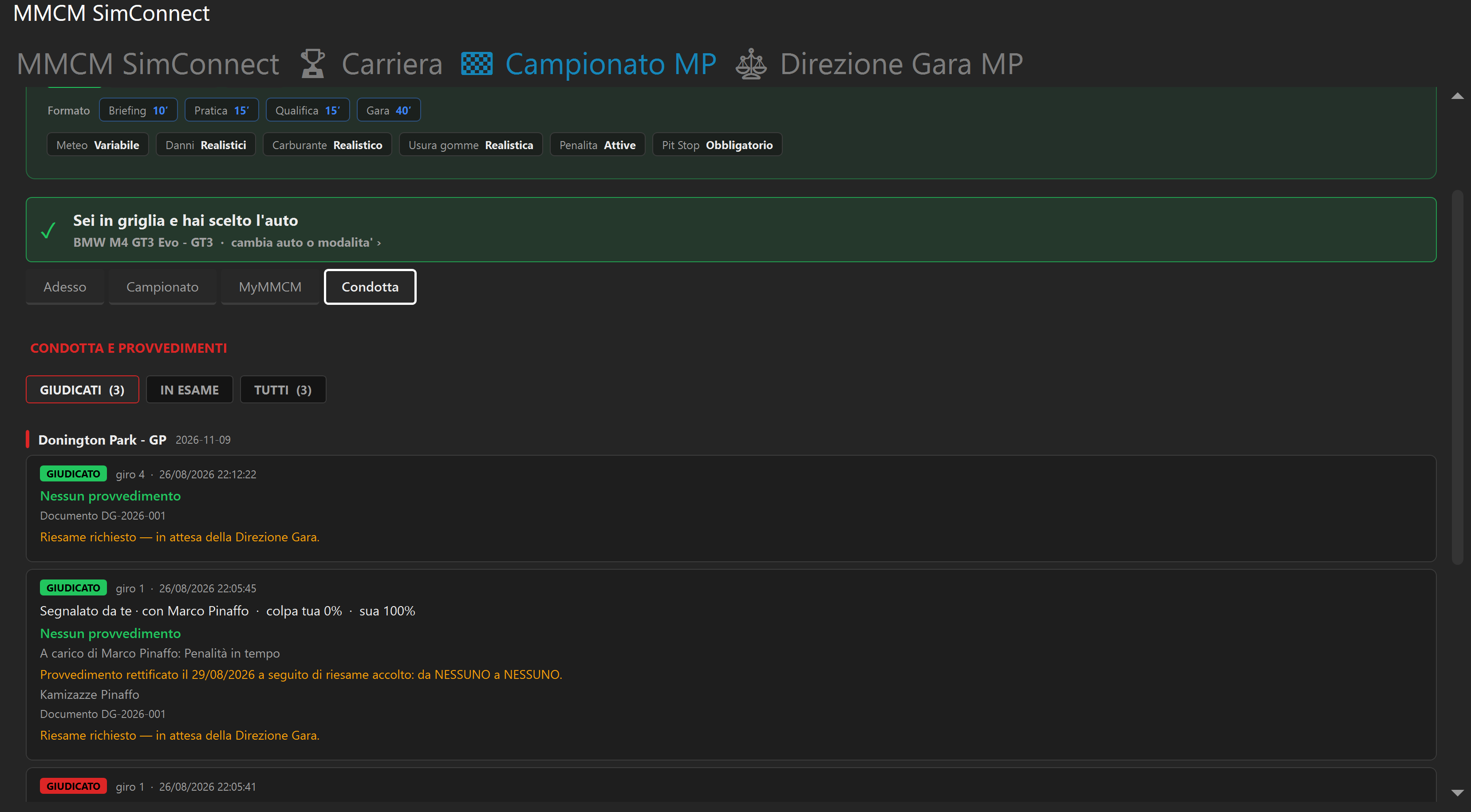
Ogni episodio in "Condotta" mostra chi era coinvolto, la percentuale di colpa assegnata e l'eventuale provvedimento. Se non sei d'accordo con un giudizio, puoi chiedere un riesame — lo vedi scritto in arancione sotto l'episodio quando è già stato richiesto.
First login
Open SimHub, go to MMCM SimConnect in the left-hand menu. In the Impostazioni (Settings) tab you'll find the login box: use your MMCM Racing website credentials, or the Accedi con Steam (Log in with Steam) button — faster, one click and done.
Your details — and switching the plugin to English
Right after your first login, fill in "I tuoi dati" (Your details): it's the button next to Accedi, in the same Settings tab. Steam tells us who you are as an account, not as a driver — first name, last name, email, preferred number and an optional team are what show up in results, in Race Direction messages and on the website. You only do this once.
At the bottom of that same window there's LINGUA / LANGUAGE: pick English, press Salva (Save), and the whole plugin switches over — overlay included. Do this first and everything that follows will be easier to recognise.
Activating the Offline Career
First things first: the career's main screen won't appear until this step is done. It's the first switch to flip.
Go to MMCM SimConnect → Carriera (Career). The first checkbox, "Abilita modalità Carriera MMCM" (Enable MMCM Career mode), is the one that turns everything on: without it, no data is sent to the servers and your offline races stay ordinary races, with no budget and no progression.
Right below it you'll also find the traffic-light overlay ("Mostra overlay semaforo sullo schermo"): a box that appears on screen while you configure the session in AC EVO, telling you whether the track, car and settings are the right ones. Recommended to keep it on, especially at first.
Your main screen
With the career active, the Carriera (Career) tab becomes your home base: balance, safety rating and your next commitment, always at the top.
From here, one click takes you everywhere else:
- Campionati e garage (Championships and garage) — where you enter races and keep your cars in order
- Sponsor — the contracts that earn you money beyond race prizes
- Banca (Bank) — if you need a loan to buy a better car
- Storico e classifiche (History and standings) — all your past races, one by one
The green box "Come impostare la gara in AC EVO" (How to set up the race in AC EVO) is your instruction sheet: track, car, number of laps, everything you need to set up in the game for that race. Copy it exactly, no guesswork needed.
Choosing a championship and taking care of your car
The "Campionati e garage" (Championships and garage) button opens a window with three tabs: Campionati (Championships), Garage and Concessionario (Dealership). It's mission control for your offline career.
Campionati (Championships) tab
If you're already entered in a championship, you'll see it at the top with completed rounds and the current one highlighted. Below, other available championships are listed with their entry fee and prize pool: pick the one you want to race and press ISCRIVITI (Enter).
Garage tab
Here you see the state of every car you own: how damaged it is, zone by zone, and what it costs to fix.
Above a certain damage threshold the car can't go on track — the plugin tells you so right when you're about to start, so you don't find out mid-race.
The help you get while setting up the race
Once you've picked your race, go back to the game: the overlay follows you and checks every setting — track, car, session — with a clear message if something doesn't match.
The same check follows you inside the game too, while you're in AC EVO's menus: a box with the full checklist, green dot for everything correct, red for what needs fixing.
Starting the race in AC EVO
This is the part that worries newcomers most, and it's actually the simplest: you just play the game normally, in Single Player, the way you always have. The plugin doesn't launch anything and doesn't touch the game: it watches, checks that the session is the right one, and records the result. All you have to do is match the settings.
First things first: how the game has to run
If you want to see the overlay while you set up and while you race, AC EVO has to be in borderless window (or windowed) mode, not exclusive fullscreen: Windows won't draw anything on top of an exclusive fullscreen game, so the overlay would simply stay invisible. You set that in AC EVO's video settings, once.
- The overlay's size and position can be adjusted freely in the plugin's settings: put it where it doesn't bother you, as big as you need
- If it feels bulky on track, there's a compact mode that keeps only the essentials
- Prefer exclusive fullscreen? You still can — you just lose the overlay, the race is recorded all the same
Where you start from
From AC EVO's home screen: DRIVE → SINGLE PLAYER. From there you pick the mode.
Either is fine. What matters isn't the mode, it's that the session parameters match what the round asks for: track, car, session type Race, number of laps, number of opponents and weather.
Setting the race up
No guesswork needed: the green box "Come impostare la gara in AC EVO" (How to set up the race in AC EVO) in the Career tab, and the overlay itself, list the required configuration line by line. Copy it into the game's setup screen.
On the summary screen, before you go, you get the final overview: if the overlay is all green you're good — hit START SESSION.
The red "you're in Practice" message is normal
If you pick Race Weekend, the game puts you in practice first, then qualifying. Until you're in the Race session, the overlay flags it in red — it isn't an error you need to fix and there's nothing to do about it: it's just the plugin telling you the session that counts hasn't started yet.
When the race starts
As soon as you're in the race session and everything matches, the overlay turns green with "All set — go out on track!" and confirms the career session is active and the race is being recorded.
Once you're on track the overlay goes semi-transparent so it doesn't block your view, showing only the "Recording" status. Want even less clutter? Switch it to compact mode and forget about it: from here on you only have to drive.
After the finish
Cross the line and give it about thirty seconds: the plugin closes the session, works out safety rating, credits and points, and sends the result to the servers. From then on you'll find it under "Storico e classifiche" (History and standings).
- Game in borderless window, overlay wherever and however you like it
- Single Player, Quick Race or Race Weekend — your call
- Configuration copied from the overlay, every dot green
- Red "session" dot during practice and qualifying: normal, it sorts itself out
- Thirty seconds of patience after the finish, then check your history
Your offline career history
From the home screen, "Storico e classifiche" (History and standings) opens "Il mio storico" (My history): at the top you always have your overview — safety rating, sessions raced, kilometres driven, contacts — with Sessioni (Sessions), Campionati (Championships) and Record tabs to look at it from different angles.
Sessioni (Sessions) tab: the detail of every race
Every session can be opened to see exactly what happened: the credits you earned and, most importantly, how your safety rating changed — line by line.
At the bottom you'll also find the list of episodes ("EPISODI"): every contact, with the lap it happened on and how much safety rating it cost.
Campionati (Championships) tab: your offline standings
Here you see the overall standings for the championship you're racing, with points round by round and a graph showing how you're doing against your rivals.
Entering an Online Championship
Racing online needs two separate entries, in this order. The plugin reminds you every time you open the MP Championship tab for a championship you're not entered in yet.
- First on SimGrid — that's where you put yourself on the grid for the actual race. The "Apri SimGrid" (Open SimGrid) button takes you straight there
- Then in career — as soon as you're on the grid, come back here: the choice of car and participation mode unlocks
What car you race online with
Once you're on the grid, choose how you want to race. The choice applies for the whole season, not race by race.
Online pre-qualifying
Before the actual race weekend, many tracks have a pre-qualifying window: laps on the dedicated server, with your entered car, and the plugin records your best time automatically. It decides the starting grid, not the championship standings.
From the MP Championship tab
In the dedicated sub-tab you'll find every track in the cycle, with its opening date and two buttons: one for your personal times, one for the leaderboard of every driver.
Your times, track by track
From "Vedi i miei tempi e i giri rimasti" (See my times and remaining laps) you see exactly where you stand: how many tracks you've already completed, which ones are left, and the threshold to beat for each.
The live leaderboard
While you're on track on the pre-qualifying server, an overlay shows you live your valid time, your best, and how far you are from the threshold — for every track in the cycle at once.
Every valid lap is saved automatically: nothing to do beyond driving.
Results, standings and your driving record
In the Campionato MP (MP Championship) tab you'll find four sub-tabs, always in the same order:
- Adesso (Now) — what needs your attention: open pre-qualifying, rulings to read, the next round
- Campionato (Championship) — the overall standings and results for every race held
- MyMMCM — your entry, your personal numbers (contacts, positions gained, races finished)
- Condotta (Conduct) — every episode involving you, judged or still under review
Every episode under "Condotta" shows who was involved, the fault percentage assigned and any penalty. If you disagree with a verdict, you can request a review — you'll see it noted in orange under the episode once it's already been requested.